Organizational Chart Complete Guide
Edraw Content Team
Do You Want to create your organizational chart?
EdrawMax specializes in diagramming and visualizing. Learn from this organizational chart complete guide to know everything about organizational chart. Just try it free now!
An organizational chart is a top-down visualization of a network in which the firm's operation flows like tree branches. Organizational charts aren't new science. These excellent management tools are showing the internal structure of a company through organized subordinations and divisions since the mid-1800s.
The visual sequence diagram helps the owner in the proper distribution of responsibilities. Moreover, it helps to assess the outcome of the adoption system through an organized outline. The general appearance of an organizational chart is pretty basic. It comprises simple shapes and boxes linked to each other in a flow. Yet, these basic visualizations hide the ranked hierarchy structure of a company.
Assume organizing an entire company's record according to the ranks, job posts, and authority manually in a written record. It is a much more complex and time-consuming task. In comparison, the organizational chart delivers the same information in less time without needing extra expertise.
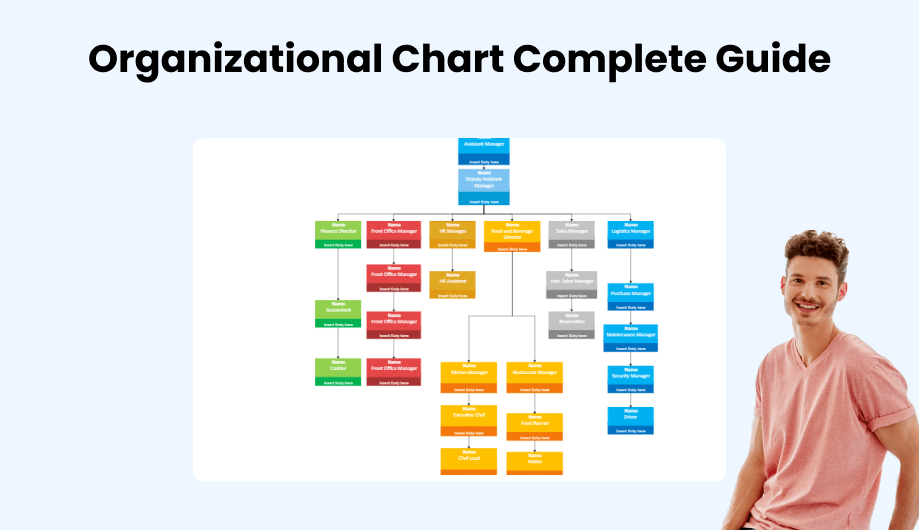
1. What is an Organizational Chart
Have you ever heard of bureaucracy? As for the organizational chart definition, it is one way to visualize it. The only thing it differs in is the working tier. An org chart details the roles, responsibilities, and connections between working individuals in a company.
Organizational chart is a physically appealing diagram that depicts a reporting hierarchy. An ideal chart covers every minor detail of a firm's significant post levels. On top of that, the diverse uses display what is an organizational chart and how it helps individuals. Typically, the diagram is for the leadership and managing committee. It helps them to grow their connections using rhythmic changes in authority. On top of that, the org diagram helps the employees to improve their mutual communication skills. It gives a better sense to employees and tempts them to handle a situation with an ideal response. It provides a better understanding of work reports and responsibilities for workers.
Organizational chart is a physically appealing diagram that depicts a reporting hierarchy. An ideal chart covers every minor detail of a firm's significant post levels.
2. Types of Organizational Charts
organizational charts are not confined to a single firm. It is a perfect choice for non-profit companies, advanced businesses, governments, and educational institutes. Every org chart has a specific type that depicts distinct information. The chart type depends on the company and the information supplied inside the task. Moreover, the authority levels inside the chart may also affect the chart type. Some primary types of org chart diagrams based on the organizational structure are as follows.
- Functional Organizational Chart:
- Hierarchical Organizational Chart:
- Matrix Organizational Chart:
- Horizontal Organizational Chart:
The functional org chart has a sequenced top-down flow that starts from high authority levels. It gradually marks its way down to the lowest position with minimum responsibility. As for the employees, their organization has a basis of skill and promoted influences. Each employee has a direct connection with the company's internal structure; therefore, it allows them to focus on their roles. This chart type is a universal deal for all companies, regardless of size. Plus, it allows the management committee to deal with every department independently. The only drawback of this chart is that it inhibits interdepartmental communication. So, there can be a lack of collective data inside the company.
It is a pyramid-shaped chart with the firm's main organizer at the top, and then as the levels go down, authority and post levels decrease. The connection of this chart type is sequenced and well related. For that reason, every employee has a direct or indirect connection with the supervisor. It defines the responsibility and authority levels as simpler and better than any other chart. Plus, it clears the way for employees by giving them a straight career path. It helps the employees to direct their attention to an appropriate authoritative person in a time of need. Still, it can induce departmental confusion. So, the employees may prefer the department and start working in its interest rather than the company.
Its usage is primarily for special projects that remain inside different teams. The appearance of the diagram resembles a grid. Therefore, the relationship diagram and authority division are better. Matrix uses different shapes to make a sequenced connection between cross-functional teams. The supervisor can choose the individuals from different teams that best fit the work. Also, it provides a dynamic view of the firm. The only drawback is that it can portray a conflict between project managers. Plus, the change inside this type of chart type is extremely frequent.
Another name for this type of chart is flat chart because of its appearance. It is in wide use for startup businesses as they do not need massive charts as divisional diagrams at the business start. The chart's structure is horizontal; therefore, it induces extra involvement in employees because of constant exposure. The communication becomes quite open and evident in this type of chart. Furthermore, it enhances ideas' influencing speed and overall team coordination.
- Functional Organizational Chart
- Hierarchical Organizational Chart
- Matrix Organizational Chart
- Horizontal Organizational Chart
3. Purpose of Organizational Chart
An organizational visual has various purposes. It uses simple shapes; but, its collective impact is far superior. No one has enough time to set up a company's data manually. People look for any easy way out, which is where organizational charts jump in.
The general purpose of an organizational chart is basic and advanced communication. Employees can use them to communicate with direct connections. It clears the way for the management committee to contact the right person in less time. An organizational chart helps the employees to judge their responsibilities and roles inside the company. It helps them to understand the promotional chances in a better way. So, it motivates the staff. The HR departments can use an org chart to create a functional workforce that befits the company. It helps the managing individuals to make adjustments in the pre-sequenced workforce if things aren't going in the right way.
Another crucial organizational chart purpose is budgeting. After having a better understanding of the authorities and sequence of the workforce inside the company, managing individuals can divide the budget according to roles easily and swiftly.
4. Organizational Chart Symbols
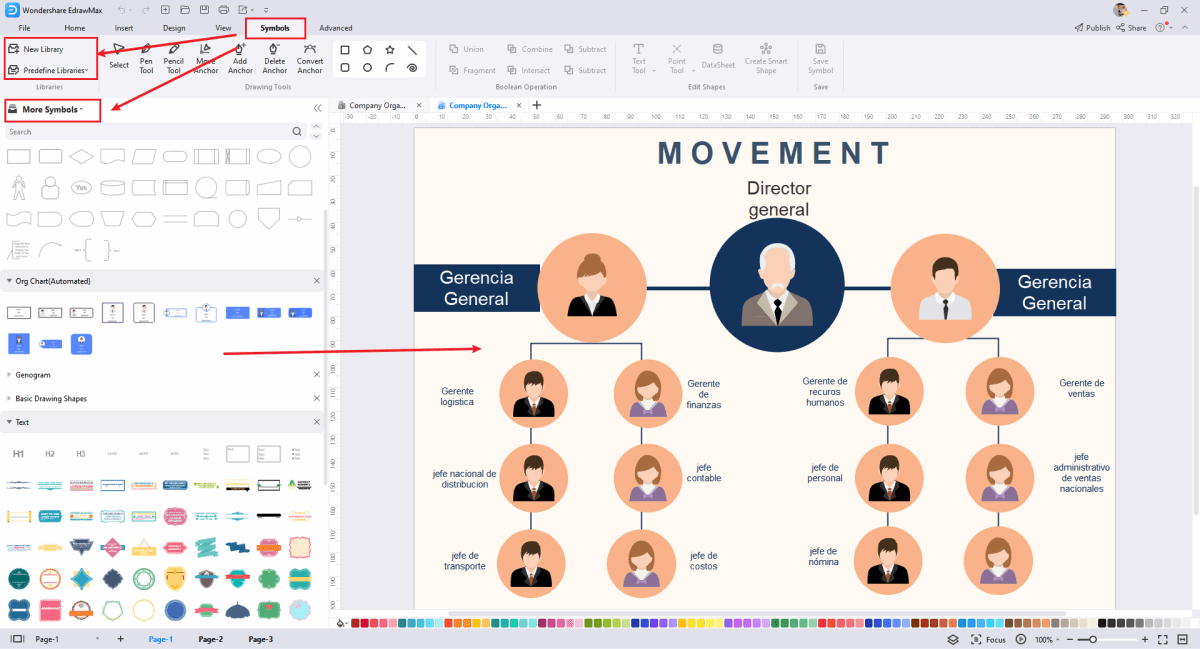
Edrawmax is one of the best designing tools that can help you create an org chart according to your needs. Unlike other chart makers, it provides you with a set of symbols. For that reason, you won't have to start from the scratch to build more minor visualization components. EdrawMax has different types of symbols inside that can be of two standard colors. Moreover, the shape, text, and clipart inside the symbol also change. On the edit screen, on the left side of the panel, you'll see different symbols. You can use these by the simple drag and drop method.
Yet, if you want to customize the symbol, EdrawMax is optimum for that. You can change the entire symbol as you desire. Along with that, you can create and add new symbols in the cloud library and use them later.
5. How to Create an Organization Chart Easier
When it comes to organizational chart production, people look for a fast and easy way. EdrawMax not only provides user-friendly and easy exposure, but it also does everything in a flash.
Follow the given steps to create an organizational chart inside the EdrawMax.
Step1 Open EdrawMax and Login
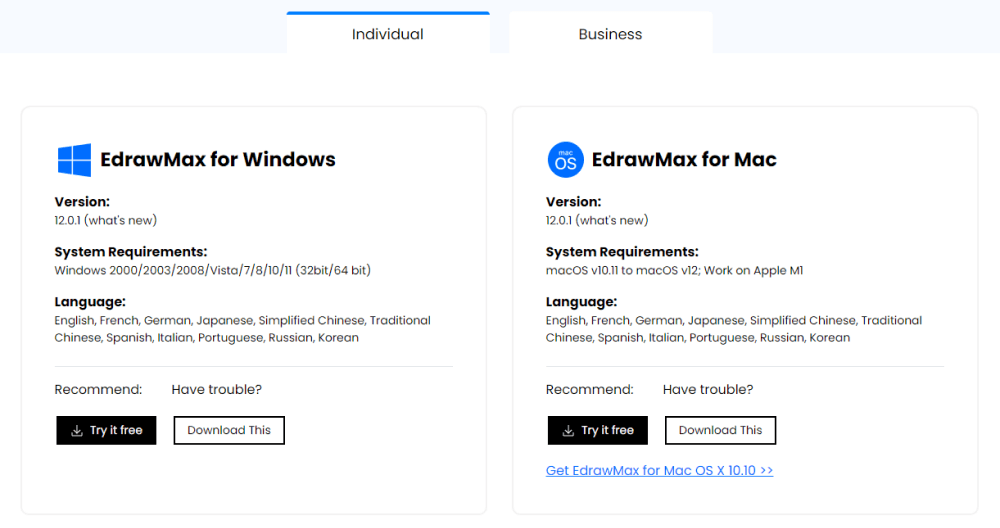
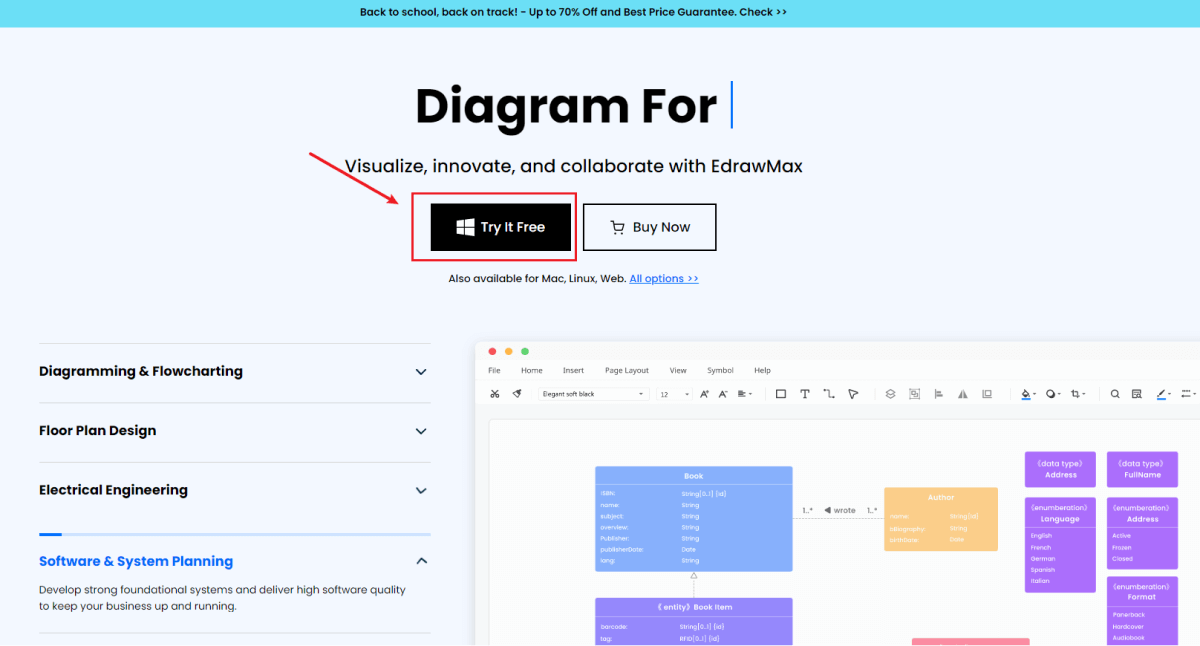
Download the EdrawMax from the official website. You can use any search engine; just click on try free, to get a free 15-day trial. Otherwise, click on “Download Now” to get the full version. Once the program gets downloaded and installed, open it and log in to the program using your id. If you do not have one, you can make it in minutes.
Step2 Select a template
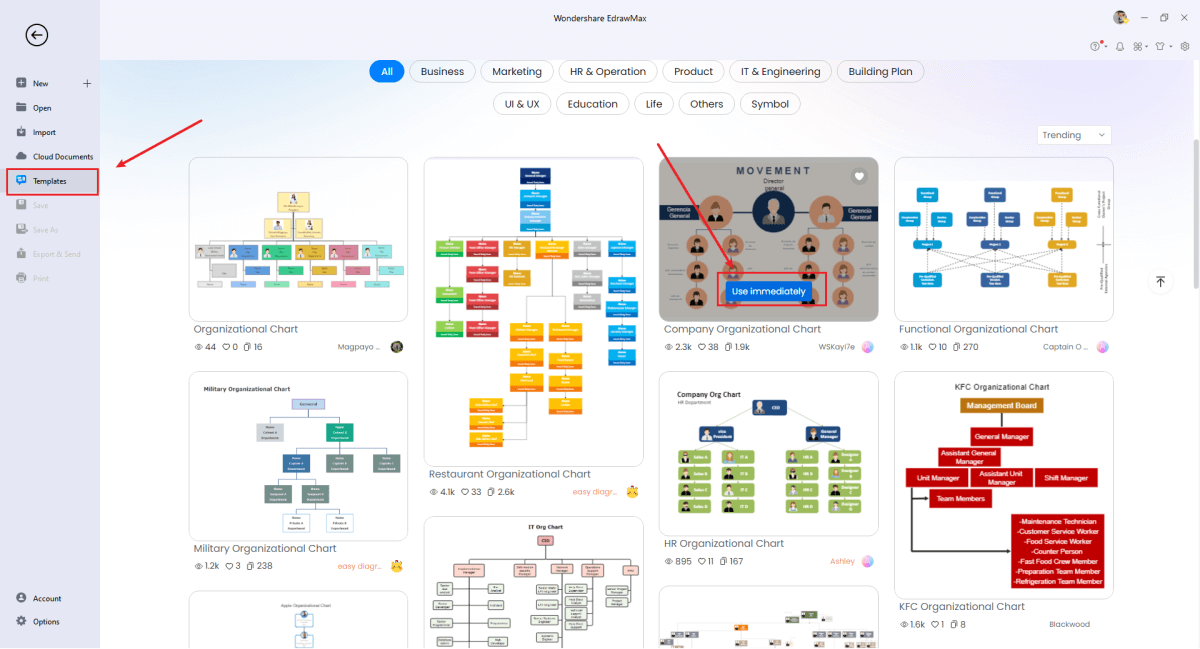
If you are one of those people that do not want to work hard for a specially designed org chart, you can go for the templates inside the EdrawMax. Once you log in, at the left panel, scroll and find the option “Templates”. Click it, and it will take you to a massive network of templates ready for use. You can click on the search bar and type “organizational chart.” After that, choose the one that suits you well and click “Use Immediately” to transfer its replica to the editing screen.
Step3 Create from Scratch
If you are conscious of every single detail, starting the organizational chart from scratch would be better. EdrawMax has tons of different options. To start the production, click “New,” find “Organizational Chart” from the right panel, and click on it. You'll be given a typical template. You can change its layout if it isn't your ideal choice.
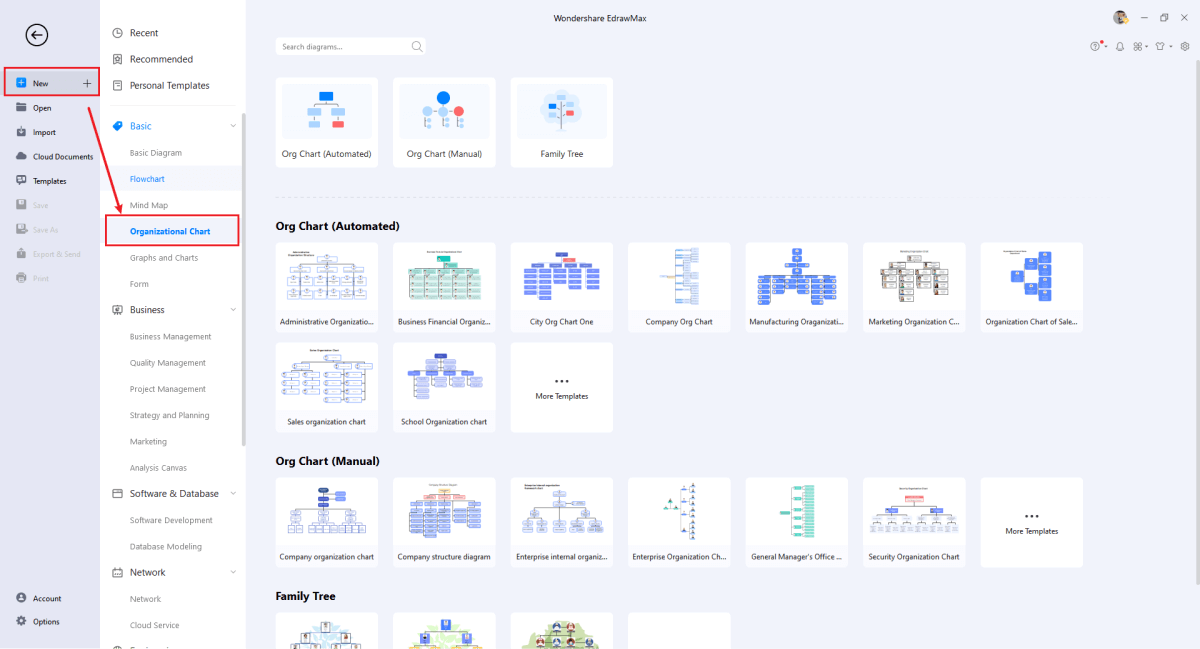
Step4 Add Symbols
Once you got the basic template, now add the symbols. At EdrawMax, you'll see a small panel at the left that has a complete set of symbols. Click on any of them and drag it onto the screen to add. You can use your own symbol and drag it to the “My Library” action to save it for later usage.
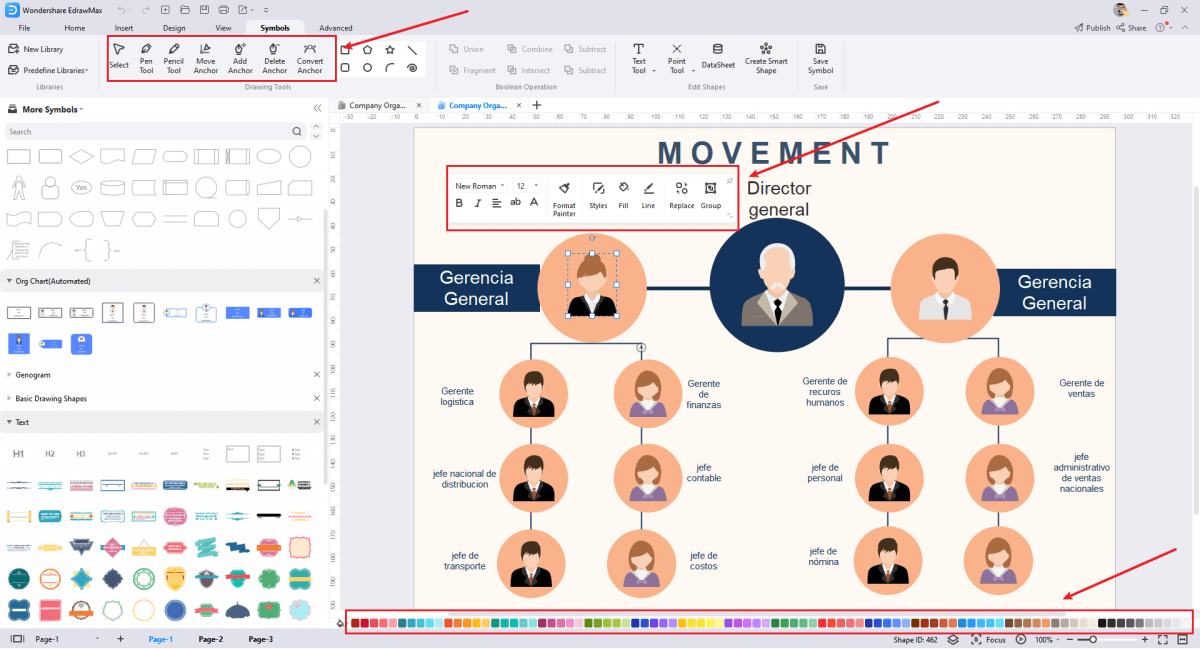
Step5 Customize Your Organizational Chart
The next stage is to customize it and add more detailed components. ErawMax has a lot better customization menu. It offers a wide range of options for customers. Plus, you can use it to detail your project. Moreover, you can change the color and size of existing symbols. The program has a built-in list of components in a different categories. Explore to find the one that suits you the best.
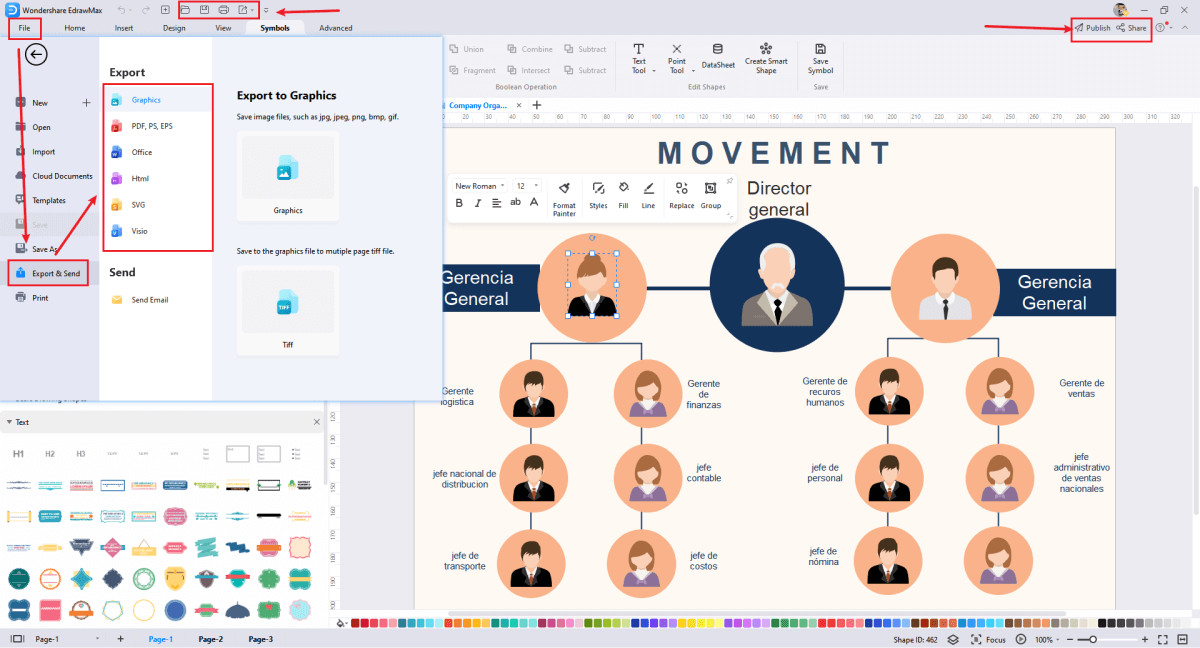
Step6 Export or Share
Once satisfied with your final product, you can export it by clicking on the “File” option and heading over to “Save As.” Click it and choose the location. Now choose the format from 14 options and export the file. Other than that, you can use the “Publish” button to share your chart with the social world.
Basically, it is simple to create an organizational chart in EdrawMax, just grab a template and keep customizing, drag and drop professinal symbols to make your plan better. If you are still confusing about how to create an organizational chart in EdrawMax, just check this organizational chart guide, or check the video below. Or you can find more tutorial videos from our Youtube.
6. Organizational Chart Examples & Templates
There are 4 examples of organizational chart that you can refer or use immediately. Just click the image to download EdrawMax, and download the templates accordingly. Then double click to open the templates and customize as your prefer. Or open the templates from EdrawMax Online , and duplicate the templates. Click this organizational chart examples to get more inspirations.
Example 1: Company Organizational Chart
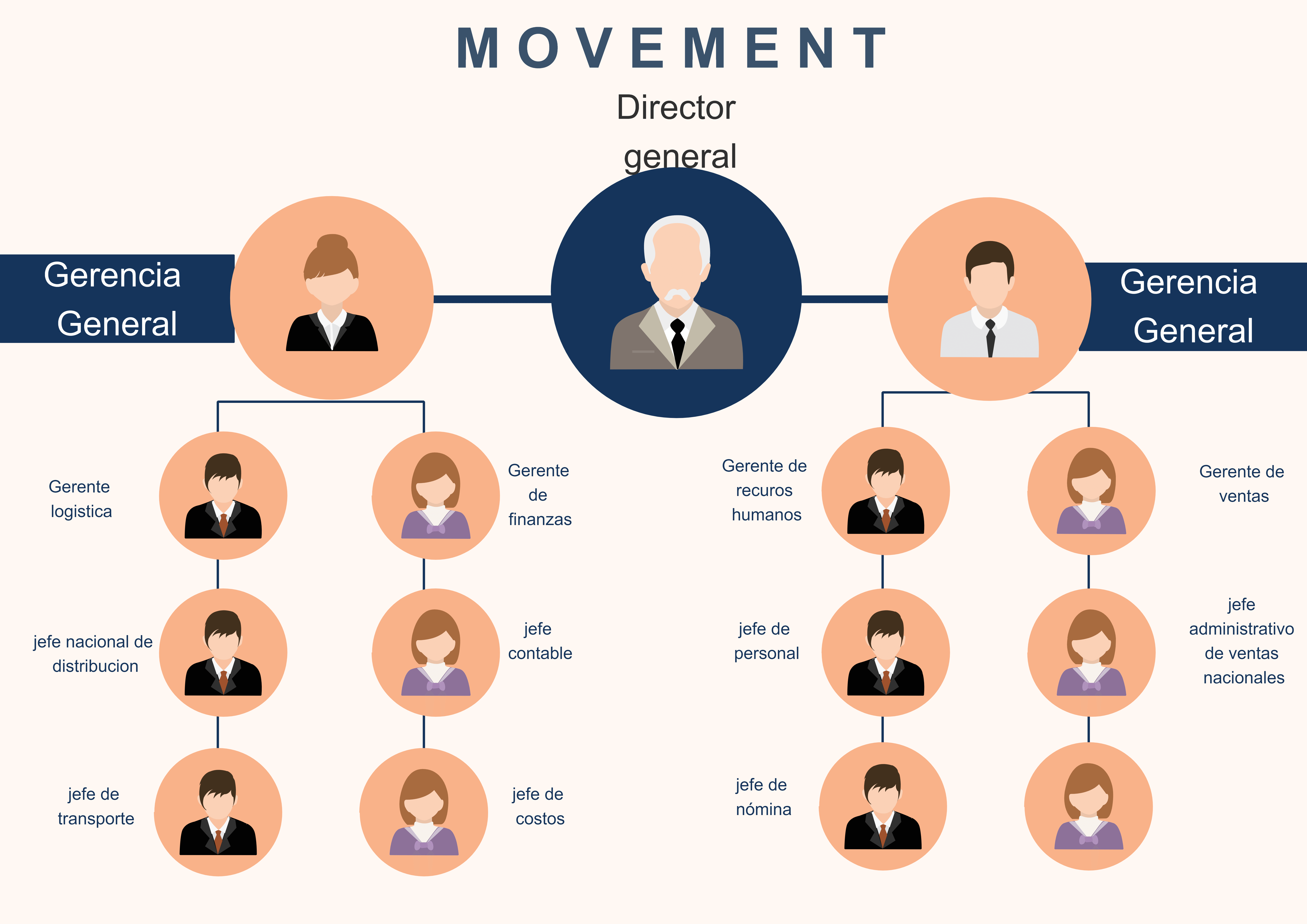
This company's organizational chart is a top-down flow chart. It has the supreme authority level on the top. The supreme authority personnel is in direct relation with to vice directors. Each one of these belongs to a different department. The next level is employees that are in direct relation with the vice director. In this example, both of these vice directors have four employees under their supervision.


Example 2: Hospital Organizational Chart
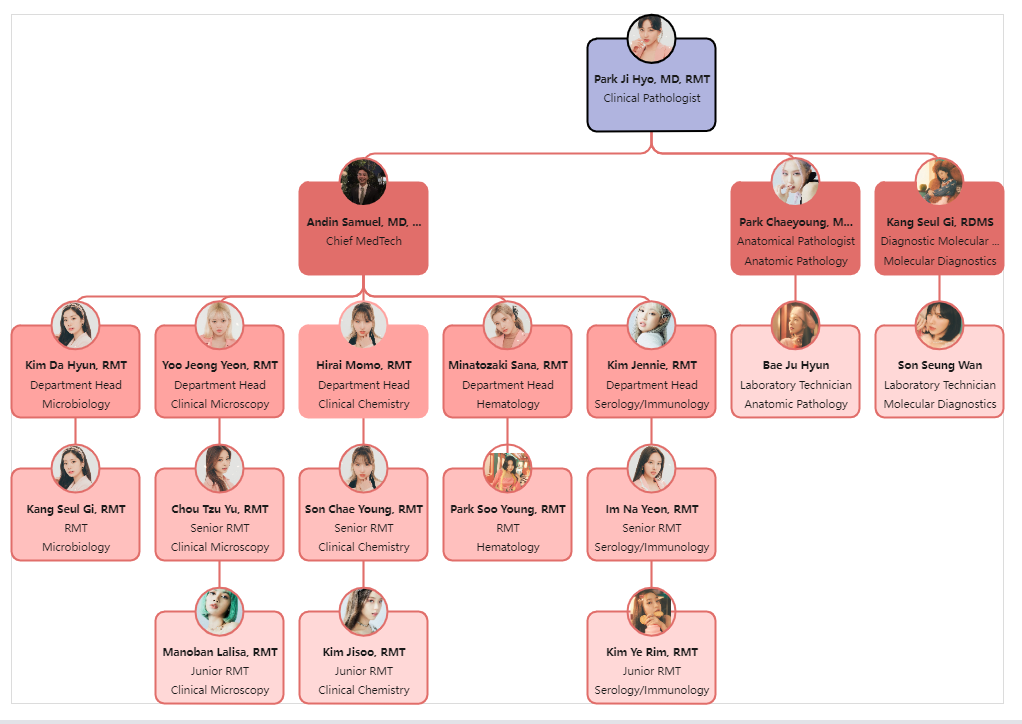
This organogram is specifically for a hospital. The visual representation may look similar to a pyramid-shaped structure in this example. In fact, it is a pyramid shaped diagram to some extent. The main authority is given to a single person. Therefore, its color scheme is also different than others. After that, three separate sub-categorized authority levels are present, and two deal with their distinct respective supervised workers. At the same time, the remaining single individual is a chief med tech that takes care of the majority. Moreover, there are separate circles with every shape box in this hospital org chart. You can use it for the picture of the respective person. Along with the names, each section includes the job post of the individual. Plus, there are a number of roles and responsibilities that the individual has inside the company. It helps the HR departments judge individuals' promotional capabilities and track their performance.
Example 3: Restaurant Organizational Chart

This type of chart is named as an organizational restaurant chart. It is a pyramid shaped chart that gives supreme authority to a single person. Moreover, the top-down flow is constant in this type of example. It uses different color schemes that depict various things. It can either depict similar departments or similar project working individuals. Along with the names, there is a special section below every deck shape where you can add the specific duty of the personnel.
Example 4: Hotel Organizational Chart
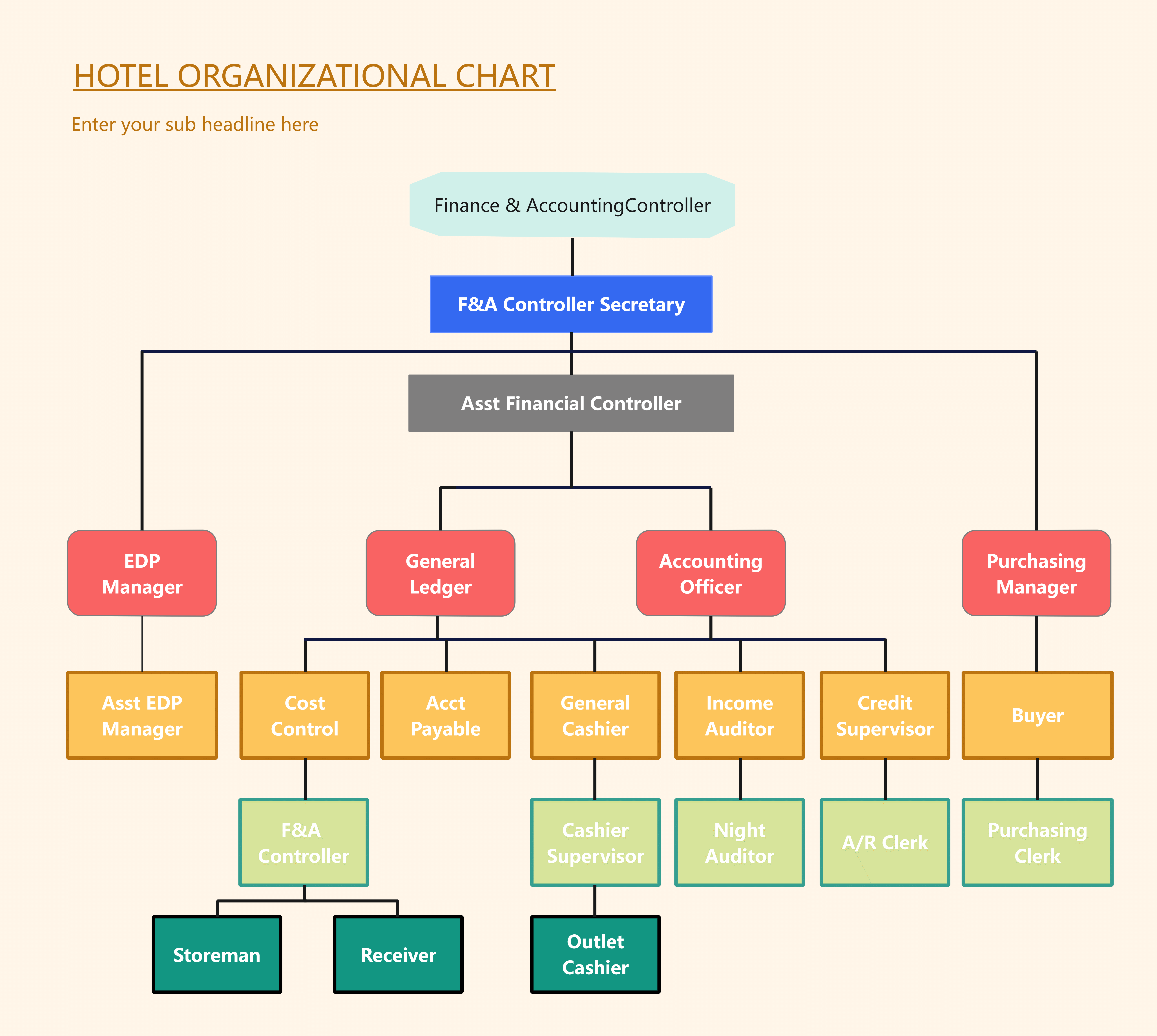
The hotel organizational chart in this example is only for the hotels. This example uses color schemes according to the authority level. Every level has a different color that helps the HR department to manage the entire workforce. This example is not as detailed as the previous one. It only has the names of a company's job posts. Therefore, it is't as beneficial as the restaurant organizational chart.
7. Free Organizational Chart Maker
Making an org chart is now easy with EdrawMax, which is a free organizational chart maker . It is time to say goodbye to all those traditional and time-consuming methods of org cart production. The best part is that it does not demand much; you can get its complete visual experience within those 15-day trials which is more than enough to know every single thing about the program. The following reasons portray EdrawMax as the best organizational chart maker.
key Features of EdrawMax:
- It is easy to use with a user-friendly interface. Therefore, it takes less time to complete the entire task.
- The EdrawMax is a highly customizable program. You can use the edit screen to customize the chart like a pro.
- The EdrawMax is a highly customizable program. You can use the edit screen to customize the chart like a pro.
- The growing template community gives an easy and fast fix to the problems. You can find your org chart there in a matter of minutes.
- You can export the files in 14 different formats, making them suitable for every social media platform.
 EdrawMax DesktopEdrawMax Online
8. Final Thoughts
An organizational chart is a general visualization that simply organizes a complex company structure using basic shapes and textual information. Nowadays, it has become an utmost necessity for management teams.
To manage and direct the employees in the correct direction, HR departments need organizational charts. Moreover, these help the employees to communicate better with each other and the supervisor. Org charts give a better sense to the working individuals that who they should follow. Plus, it clears the way for the leadership committee.
The best way to generate an org chart is through credible software that has every minor and major tool available. Right now, there is no tool better than the EdrawMax in the market. Its easy-to-use interface and appropriate handling make it the preference of experts. It provides never-ending template options for you to choose from. You can get your desired org diagram in a matter of minutes with a few clicks.
All these exceptional qualities collectively make the EdrawMax stand out from competitors. Try it yourself using it free for 15-days. Download it now and feel the advantage yourself.
Organizational Chart Complete Guide
Check this complete guide to know everything about organizational chart, like organizational chart types, and how to make an organizational chart.
You May Also Like
Programming Flowchart Complete Guide
Knowledge
Critical Path Method Complete Guide
Knowledge
Quality Control Flowchart
Knowledge
Graphic Organizer Complete Guide
Knowledge

