How to Create an Organizational Chart
Edraw Content Team
Do You Want to Create Your Organizational Chart?
EdrawMax specializes in diagramming and visualizing. Learn from this article to know everything about how to create your organizational chart with ease. Just try it free now!
If you have been working in an organization for a long time and are familiar with everyone's responsibilities, it would be pretty easy for you to evaluate the individual's success. But if you have just got a leading position in a company, it would almost be impossible for you to understand how their business is running and what key elements are playing a crucial role. This is where an organizational chart comes in.
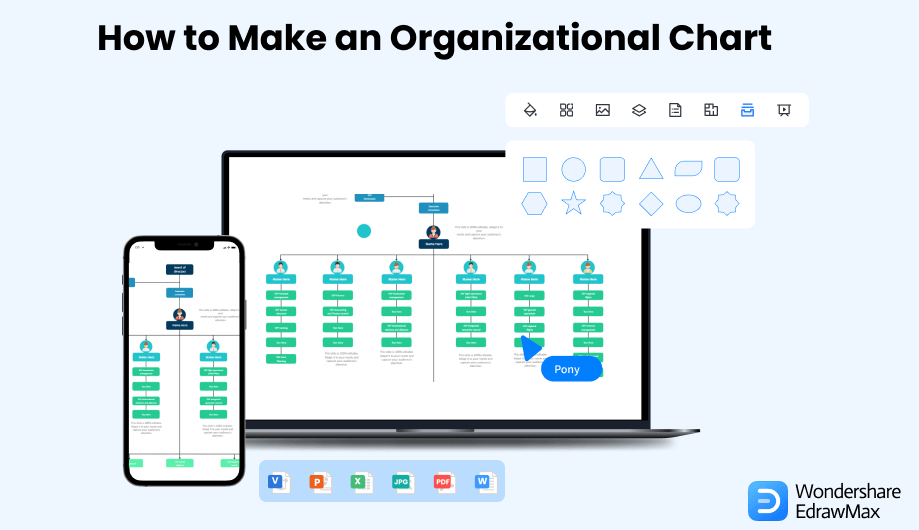
Doesn't matter if it is a start-up or an established business; an organizational chart helps everyone understand the structure of the whole business model. These charts are also known as box features, organograms, or org charts. They represent employees and their designations, along with some illustrations, icons, page links, and contact information.
Do you want to create organizational chart for your brand? Looking for an efficient tool to get the job done? If yes, EdrawMax will surely lend a helping hand in this regard. This article closely focuses on how to create an organizational chart both from scratch and by using built-in templates. Let's get into the specifics.
1. What Includes in an Organizational Chart
As stated above, an organizational chart is all about representing people and their respective positions in a specific organization. In other words, it displays the complete structure of a business.
If you want to know about how to make an organizational chart directly, please click here.1.1 Key Elements of an Organizational Chart
To better understand what an organizational chart is, let's have a look at the six important elements of the organizational structure.
- Departmentalization
- Chain of Command
- Span of Control
- Centralization and Decentralization
- Work Specialization
- Formalization
It divides the business into different groups based on the nature of the tasks. Every group has a specific nature of tasks to perform. These groups are called departments. Different departments may have different missions and different products or services to sell.
The chain of command means giving authority to one person rather than many at the same time. The same trend is being followed in millions of organizations worldwide. Every employee has to report to a single boss in a particular department.
It means how many people work under every manager. The span of control varies from one organization to another depending on the business goals, departments, and the workforce's size.
The centralized structure means not all managers can create or set business goals. In this structure, the middle managers are responsible for carrying out the goals (with the help of their team) set by the top management. In contrast, a decentralized structure allows every manager to set different goals to take the business to the next level.
Assigning specific responsibilities to all the employees keeping in mind their academic qualifications and professional experience is commonly called work specialization. Most employers formally issue job descriptions in written form to avoid any sort of duplication.
Formalization is all about determining the guidelines, rules, and procedures being followed in an organization. Culture representation (e.g., the working schedules of all employees) is also part of the formalization.
1.2 Organizational Chart Symbols of EdrawMax
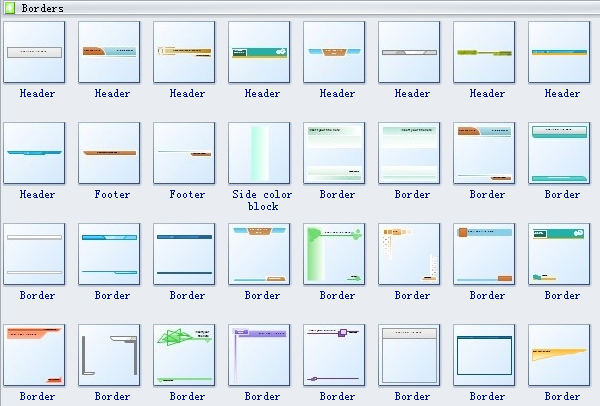
EdrawMax comes with a wide range of symbols to create organizational charts. Let's talk about a few of them to understand their functionality.
- Border: It shows the part of something near the boundary or the boundary itself.
- Footer: It shows a thing or person of specified height or length in feet.
- Header: It is an information unit that is used before the data project.
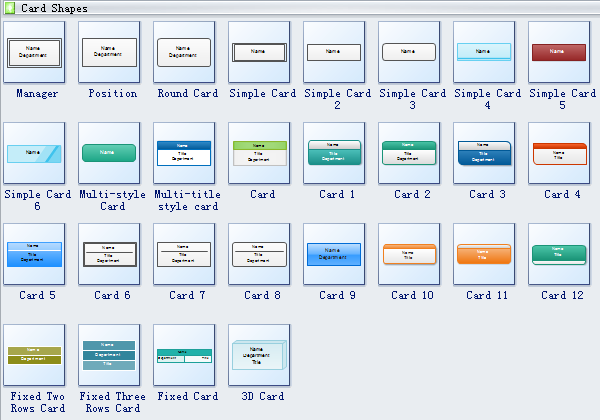
- Fixed Card: As the name depicts, you can't change or adjust this card.
- 3D Card: It gives a three-dimensional look when moved.
- Position Card: It records a specific designation or position.
2. Preparation Before Creating an Organizational Chart
Randomly starting to create the chart is not a good idea; instead, you should ask an expert how to make an organizational chart. If your friend or colleague has similar expertise, there is nothing better than consulting these guys before you create organizational chart. A few questions to consider before making an organizational chart are:
- How to structure an Organogram?
- What should it look like?
- Which tool is trusted and efficient for creating an org chart?
- How to start creating an organizational chart?
As soon as you get answers to all these questions, making an org chart will surely become super easy for you.
3. How to Create an Organizational Chart in General
On the hunt for how to create an organizational chart? Searching for a step-by-step guide to developing a better understanding? This section of the article has got you covered. Let's delve deeper into the details. In just five simple steps (as listed below), you can create organizational chart easily.
- Step 1: Defining Purpose:
- Step 2: Gathering Relevant Data:
- Step 3: Identifying the Problem:
- Step 4: Effective Planning for Upgradation:
- Step 5: Review the Whole Chart:
The purpose definition is a must to make an organizational chart. For example, you should be clear about whether you are creating this chart for the whole business model or a specific department.
An existing organogram or information about the workforce plays a key role in creating an organizational chart. Try gathering contact information, pictures, and anything else you want to put in your org chart.
You can never make an org chart unless you are well familiar with what exactly the problem is. As soon as you understand the problem, you will be able to display it effectively.
Reputable organizations always prefer to accept new challenges; therefore, things over there may change overnight. So, don't forget to ensure you can efficiently make the desired changes to your chart.
After carefully following the above steps, don't just wind up everything and think that you are done. It is suggested to cross-check every single symbol and other aspects of the diagram before you finalize it all.
- Defining Purpose;
- Gathering Relevant Data;
- Identifying the Problem;
- Effective Planning for Upgradation;
- Review the Whole Chart.
4. How to Create an Organizational Chart in EdrawMax
EdrawMax is outstanding software for creating any type of drawing, including organizational charts. Are you searching for how to create an organizational chart in EdrawMax? Well, there are two different methods to draw your org chart.
Method 1: Create Organizational Chart from Scratch
To create organizational chart from scratch, simply follow the below-listed steps.
Step1 Download and Login
Go to the official site of EdrawMax. Download EdrawMax and install it on your device. Doing this will hardly take a few minutes of yours. Open the tool and tap on the “Sign In” button. You will find it on the top right corner of the main canvas, as shown below. Open the tool and tap on the “Sign In” button. You will find it on the top right corner of the main canvas, as shown below. It will take you to a new screen and ask you to put in the desired information. Now, tap on the “Create Account” button. Congratulations! Your new account has been created.

Step2 Open a New Canvas
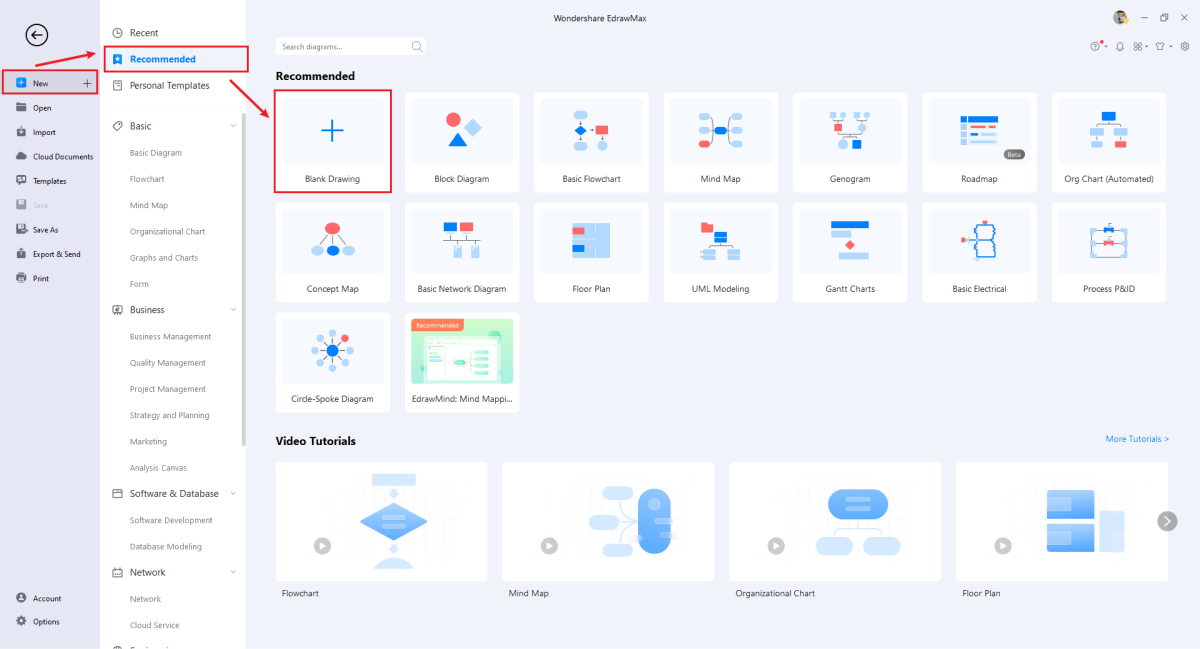
Since we are creating an org chart from scratch, we will have to open a blank drawing first. Go to the “New” option. You will find it in the left menu bar, as shown below. Now, click on the “Blank Drawing”. As soon as you open the blank drawing, you will see an empty window on your screen, as displayed below.
Step3 Choose the Right Symbols and Shapes
Go to the “Symbol” from the top menu and search for the shapes you need.
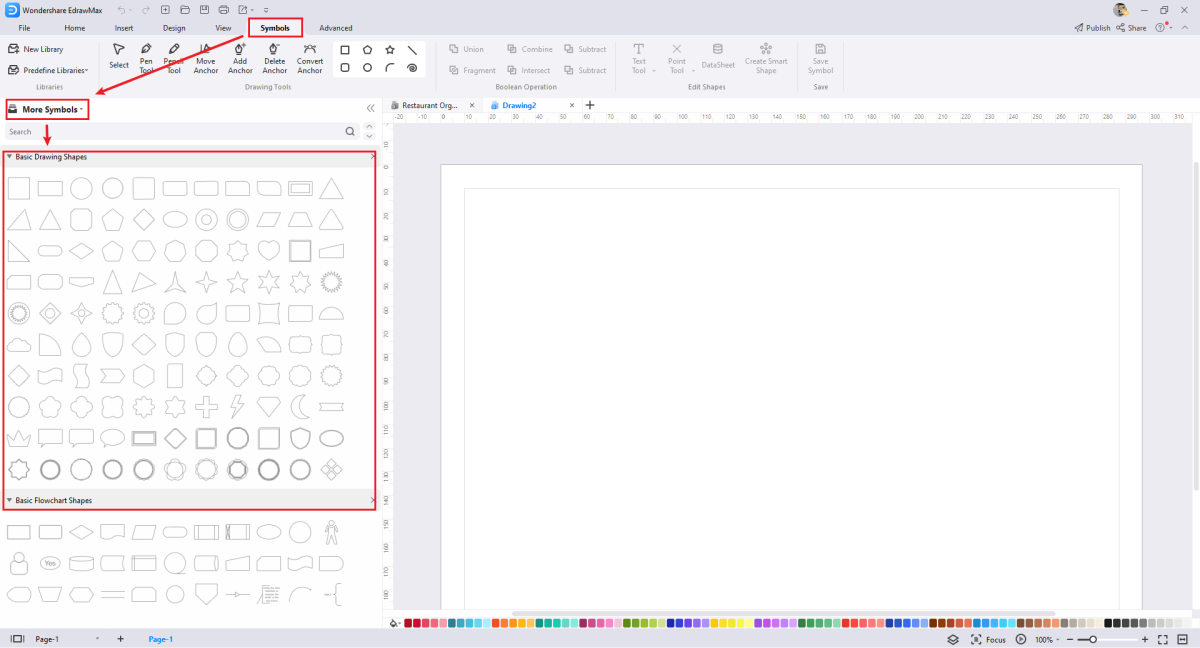
Step4 Connect Symbols and Shapes to Draw Chart
Now draw 5 rectangle shapes and connect them with each other, as shown below. Put the text boxes with suitable content in all shapes.
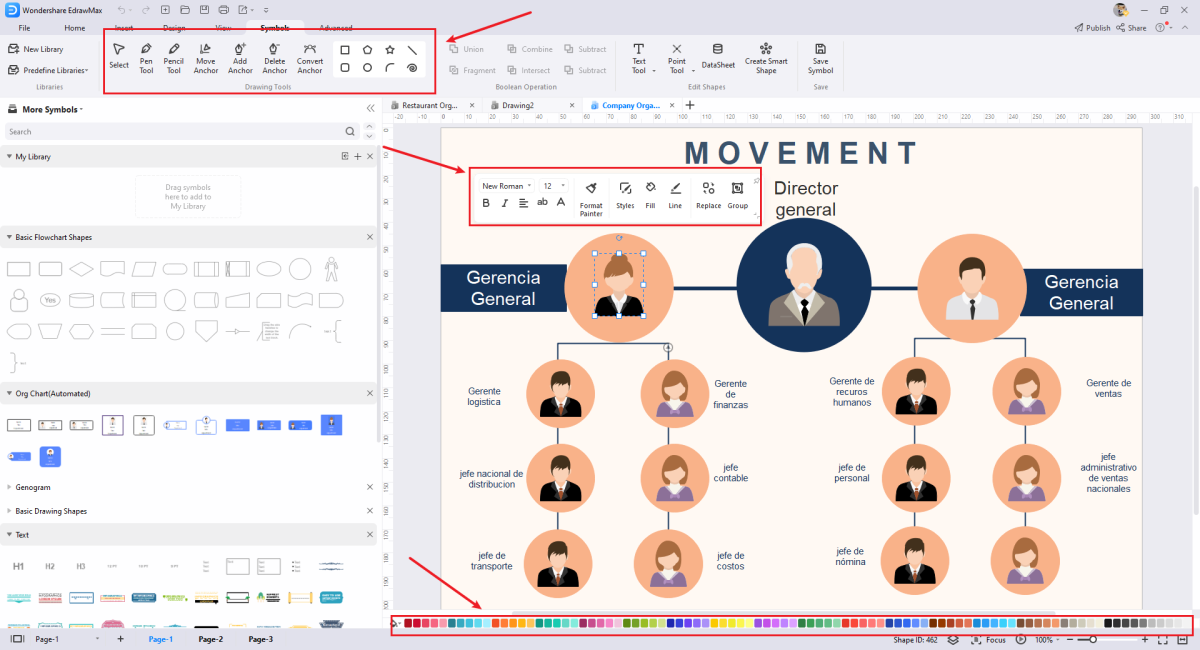
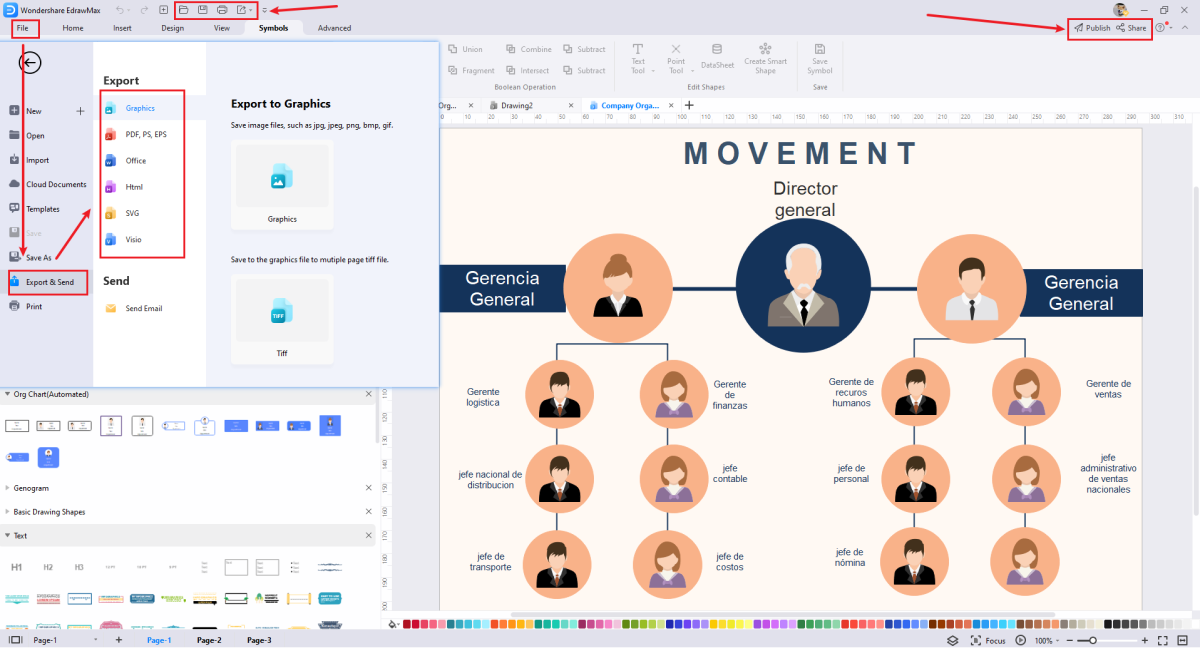
Step5 Export the Final Version
After drawing your design, you can export it into multiple formats, like JPEG, JPG, PNG, PDF, and other Microsoft formats, like MS Word, MS Excel, PPTX, etc. You can also share the organizational chart on different social media platforms, like Facebook, Twitter, LinkedIn, etc. Moreover, you can print your organizational chart drawing for showing with others.
Method 2: Create Organizational Chart by using a Built-In Template
Step1 Login to EdrawMax
If you are using the offline version of EdrawMax, then open the tool in your system. If you wish to have remote collaboration, head to EdrawMax Download and log in using your registered email address. If this is your first time using the tool, you can login to EdrawMax and find the templates from Template Community.
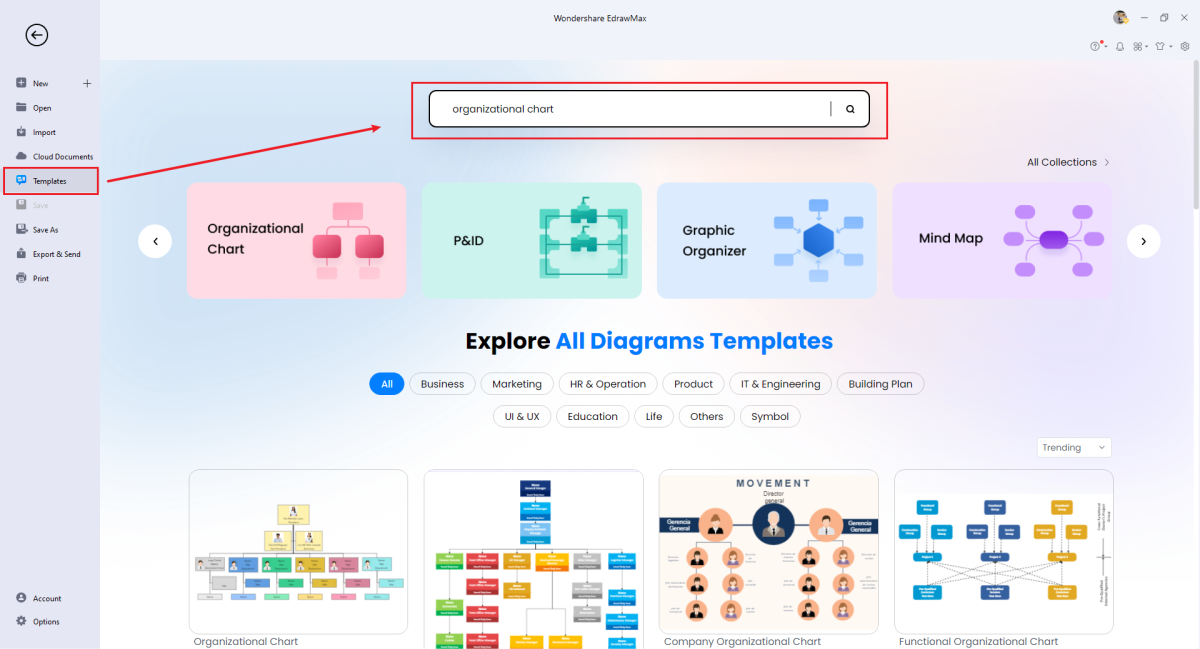
Step2 Select the Desired Template
Click on the “File” menu, go to the “Templates” section, and type “organizational chart” in the search bar. Doing this will show you multiple templates. You can choose any of them to start with.
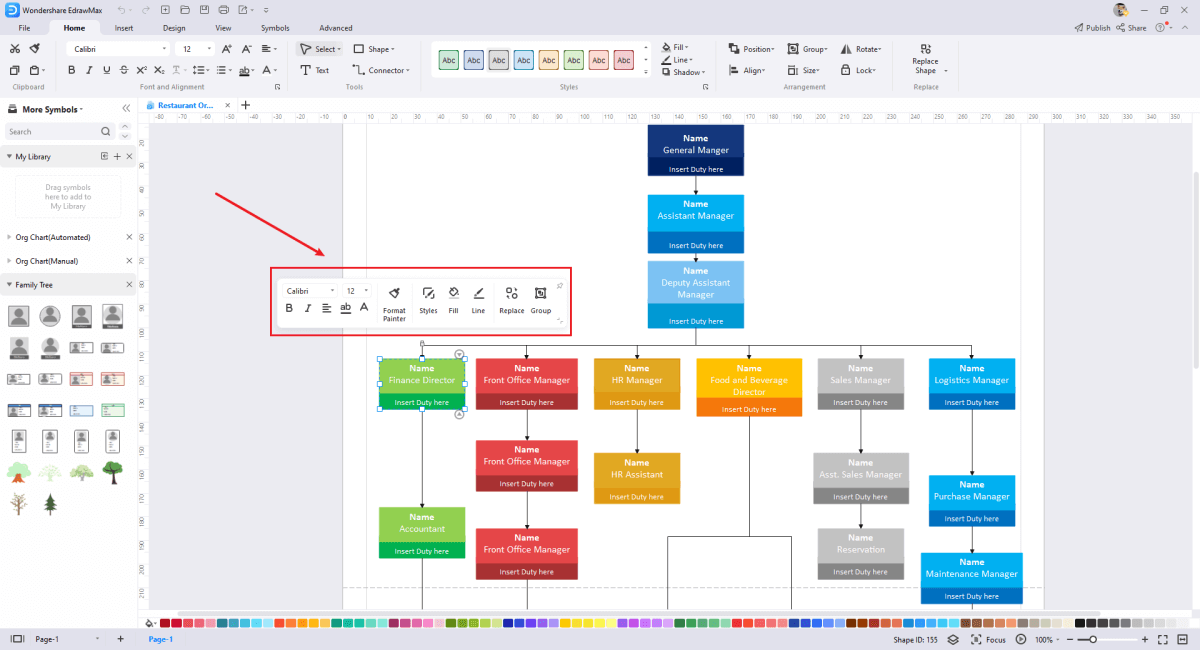
Step3 Customize the Chart
To make your org chart appealing, you can change the color scheme, font size, and font color and introduce more elements
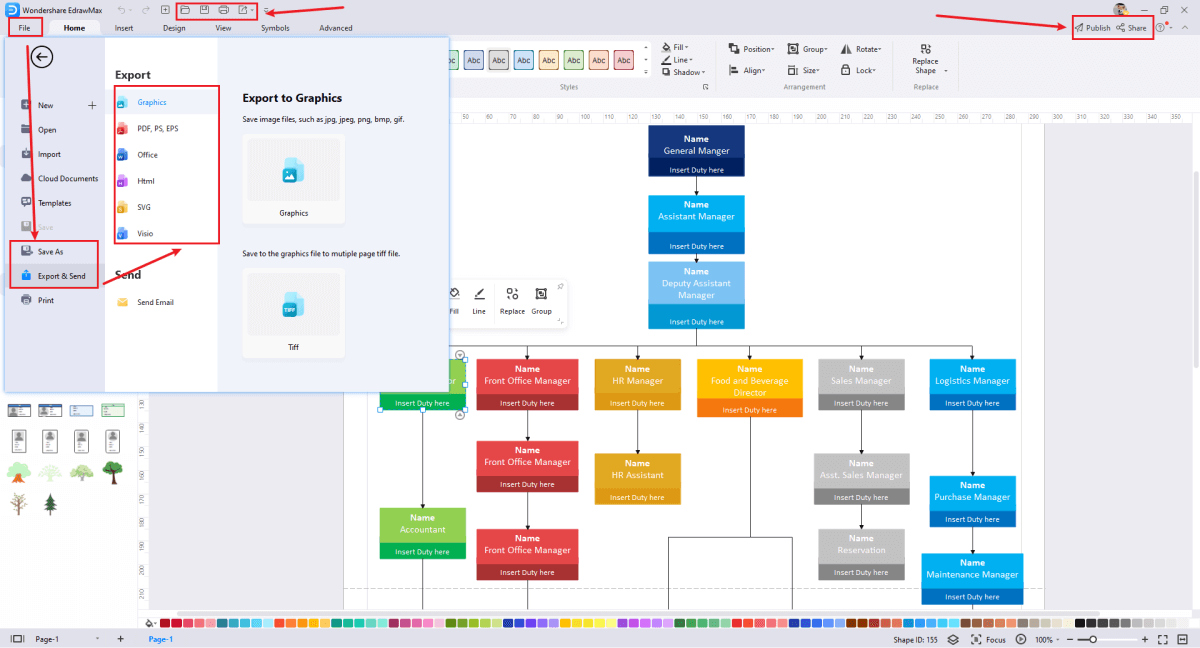
Step4 Export or Publish
OOnce you are done with the customization, you can export the latest version of the drawing to any format of your choice. It may be PDF, PNG, JPG, SVG, HTML, and the list goes on.
Comparison between Making an Organizational Chart in General & EdrawMax
- Making an organizational chart on paper may look unprofessional. In contrast, EdrawMax is known for giving your org chart an extremely professional look with proper labeling.
- If you want to make some changes to the organogram created on paper, you will have to erase it every time you make edits. Whereas EdrawMax reduces this headache of yours by allowing you to edit without erasing anything else.
- If you want to make some changes to the organogram created on paper, you will have to erase it every time you make edits. Whereas EdrawMax reduces this headache of yours by allowing you to edit without erasing anything else.
If you are still confusing about how to create an organizational chart in EdrawMax, just check the video below, or learn more from our Youtube channel.
6. Free Organizational Chart Maker
The best part of using EdrawMax is that it provides you with amazing features for free. What else do you need? With this free organizational chart maker, you can easily create and share your organizational chart. There are several important features of EdrawMax that lets you easily make organizational charts, like:
- Wide Range of Templates: The availability of built-in templates makes it very easy for you to draw your organizational chart. You can choose the right template to proceed with.
- Easy Connection: You can conveniently connect different symbols with an org chart. For this, you need to find suitable symbols and drop them in the drawing as and when needed.
- Convenient Importing: Are hundreds of people working on the same task? Need to collect a ton of data but are short on time? No worries! The “import data” feature is another great tool that sets EdrawMax apart
- Multiple File Formats: You can export by choice by selecting any of the given formats, including but not limited to SVG, HTML, JPG, PowerPoint, Excel, Word, and PNG.
- Cloud Facility: The cloud has removed the distance problem. It helps you smoothly work with any professional sitting in any corner of the world. You can create a team of people from different parts of the globe.
 EdrawMax DesktopEdrawMax Online
7. Final Thoughts
Do you wish to make your business model easily understandable? Want to create a perfect organizational chart? On the hunt for a reliable tool to lend a helping hand? EdrawMax will surely be your trusted partner.
EdrawMax has a number of built-in templates, and you can choose them to get the job done in a matter of a few minutes. Apart from that, it also helps you create organizational charts from scratch. Millions of people worldwide are already using it. Give it a try and see the magic.
Organizational Chart Complete Guide
Check this complete guide to know everything about organizational chart, like organizational chart types, organizational chart symbols, and organizational chart examples.
You May Also Like
How to Draw Human Anatomy
How-Tos

