Show or hide Office menu bar

Question
Office Ribbons interface gave users easy access to several tasks and segregated them to provide one click access to otherwise hidden features. Office 2010 also supports the same ribbons.
However not many people need the new ribbon feature and many people want to get rid of them.
Solution
This article explains how to hide menu bar in the Word and Excel documents programmatically.
Firstly, please make sure you have installed Edraw Office Viewer Component V7.x. If you haven't the version, please download it here.
Then the following example will demo how to open a word or excel document without menu bar on a VB.NET page.
Steps
- Install Edraw Office Viewer Component.
- Create a blank VB.NET application.
- Add Edraw Office Viewer Component in your form through customizing toolbox window as shown below.
- Select the Edraw Office Viewer Component and click the Property Window. Add event NotifyCtrlReady.
- Add the codes:
Private Sub btnOpenExcel1_Click(ByVal sender As System.Object, ByVal e As System.EventArgs) Handles btnOpenExcel1.Click
AxEDOffice1.OpenFileDialog()
End Sub
Private Sub AxEDOffice1_NotifyCtrlReady(ByVal sender As System.Object, ByVal e As System.EventArgs) Handles AxEDOffice1.NotifyCtrlReady
AxEDOffice1.ShowMenubar(False)
AxEDOffice1.Toolbars = False
End Sub
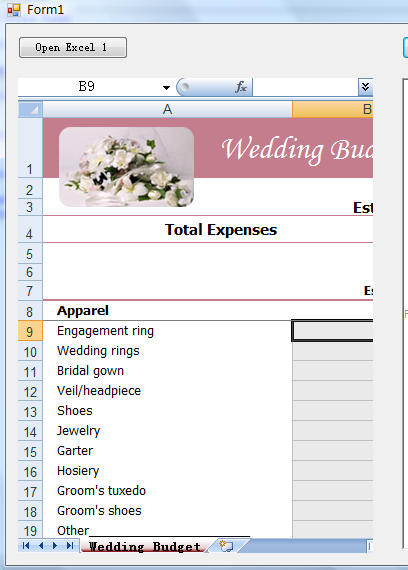
Run the project and you can see the Excel program has hide the menu bar and toolbar. Note: The Ribbon bar in Office 2007/2010 is not a commandbar. So you need to set the toolbars as false to hide the ribbon menu bar. For the Office 2000/2003, the ShowMenubar(false) will hide the standard menu in the office. Then the Toolbars will hide the standard commandbar.
Free Download Office Viewer Component and View Sample Projects