Flowchart Product

Flowchart Templates and Flowchart Stencils

Flowchart Software

Edraw offers you a number of ready-made flowchart stencils which you can use in your drawing. They are grouped in topical sets as flowchart template files. Thus, a template is a collection of shapes usually related to a certain topic (e.g. basic shapes, flow chart, computer network, etc

A flowchart template can be defined as a model or a sample document or file used as a starting point or base for a particular process or design, so that the format once created can be reused whenever required. Flowchart template is a mechanical aid used in creating flowcharts and its symbols. No other drawing software makes flowchart creation as easy as a free, easy-to-use, downloadable flowchart software package that is supported with flowchart templates and symbols.
Free download flowchart software

Flowchart Templates

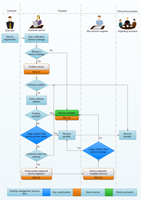
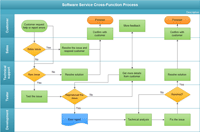
Flowchart templates provide a number of ready-made flowchart shapes, arrows, lines and stencils which can be used for creating new flowcharts. The shapes are grouped in topical sets. These sets form a flowchart library or template file. Therefore, a library or a template file is a collection of shapes used under different topics such as flow chart, basic shapes, computer network and so on. The flowchart template that is most similar to your project can be simply selected and customized to suit your needs.

1.Basic Shapes

basic shape template

2.Basic Line

basic line template

3.Connect Line

connector lines template

4.Text and Note

text and note

5.Background

drawing background stencils

Flowchart Template

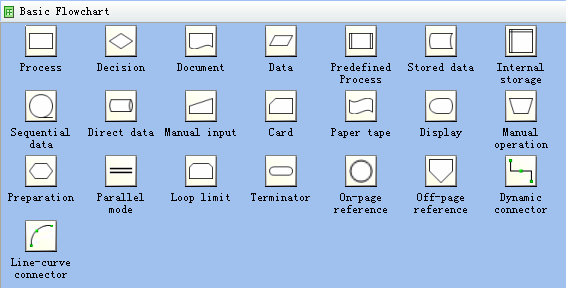
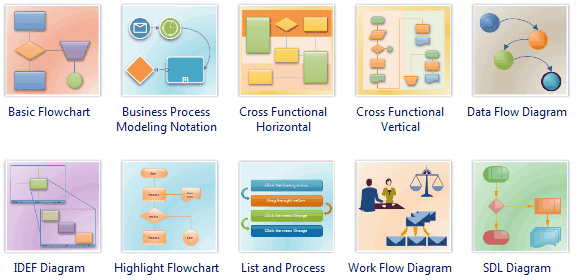
1.Basic Flowchart

basic flowchart template

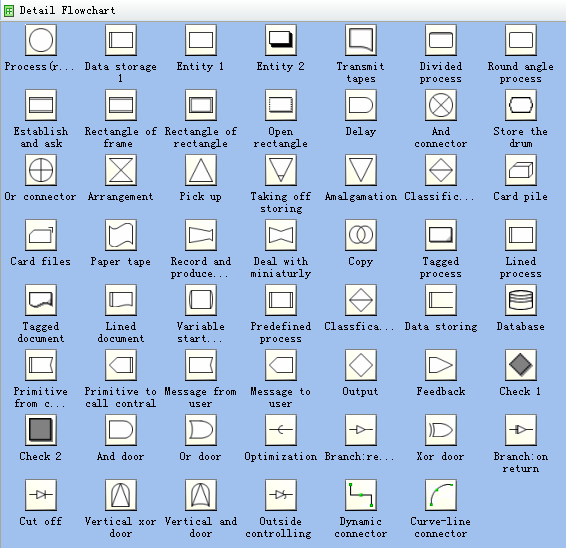
2.Detail Flowchart

detail flowchart stencils

3.Work Flowchart

work flowchart template

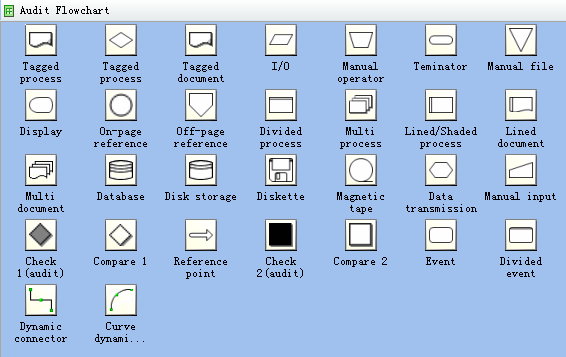
4.Audit Flowchart

audit flowchart template

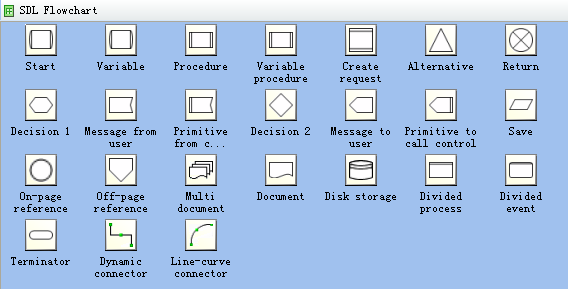
5.SDL Flowchart

SDL flowchart template

Network Template

1.Logic Net Diagrams

Logic network diagrams stencils

2.Compute and LED

Compute and LED stencils

3.Net Device

Net Device stencils

4.Server and Database

Server and Database stencils

5.Cisco Generic Icon

Cisco stencils

6.Building and People

Building and People stencils

In Edraw, you can customize the existing libraries and create new ones (both by grouping the existing shapes and by adding new ones).

More Flowchart Templates

Sketch Flowchart Template

Value-Added Flowchart Template

Workflow Template

Open Existent Template

  1. Click the Add Shape Template button on the toolbar or use the Insert / Shape Template menu.
    The popup menu will show the folder containing the libraries.

  2. Click to select the needed template.

  3. If the select template have opened in the template gallery, the gallery window will switch to the new add template, not duplicate it.

To close a library, call its context menu on its title bar and select the Close command from the menu.

Creating Template

Edraw lets you create your own libraries and edit the existing ones (move, delete, add and edit shapes). For manipulating the library files and shapes, you can use the File / Library menu commands or the Libraries toolbar:

You can create a custom shape library by using the New Template command from the Add Shape Template button on the Main toolbar.

An empty library box will appear in the library window. Now you can add shapes into it: paste them from other template. Load Template can open an existent template file.

Note: Only the template is in edit state it can add new shapes or edit shape. The edit state show a different tag from others:

Edit Template

For the active library, to set or modify the properties of a template, you can use the context menu on the library's title bar.  

Edit sets the selected template editing state. Close sets the selected template. Export template saves selected template as a template file. Icons and Names shows the both icon and name of shapes. Icon Only shows icon of shape. Names Only shows the name of shape.

Manage Template Shapes

To manage the template shapes, you can click a shape in a template and call its context menu.

When the selected template is in edit state , Cut command is active, otherwise disable. You can cut the current selected shape and paste to other template or other position of current template.

Click Add Shape, a dialog will popup. You can add a new shape to the current template.

Note: You must input the name of shape item, the value is necessary. Tooltip is the context help of shape item. You must select a shape item file, the format is *.fce. How to create a *.fce format file? Whenever you can save selected a shape or multiply shapes as a new fce file using Save Shape As command in the context menu of shape.

Click Modify Shape, a dialog will popup. You can modify an existent shape's name, tooltip ,icon, and *.fce file.

Click Delete Shape, you can delete current selected shape.

Flow Chart   |  Network Diagram   |  Organizational Chart   |  Privacy Policy   |  Link to Us   |  Contact   |  Site Map
Copyright EdrawSoft 2004-2009; All Rights Reserved.