Edraw Support Center
Get quick answers and step-by-step instructions in our support center.
Select Shape
When you want to make changes on shapes, you need to select them on the drawing page at first.
To select an individual shape: move the cursor over the shape, and click to select the shape when the cursor turns into a four-headed arrow.
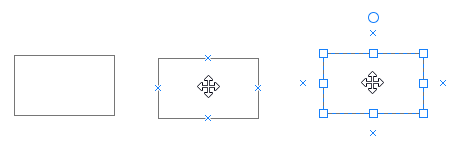
To select multiple shapes, you can achieve it via the following 3 ways:
- Select one shape, then press Shift or Ctrl and click other shapes.
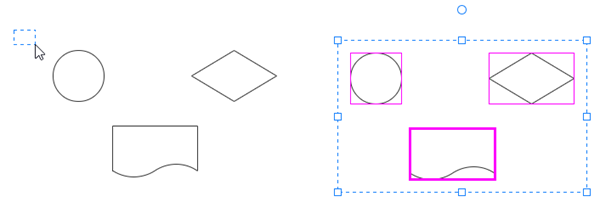
- Place the cursor on the blank area of the drawing page, and drag it to create a selection box and embrace the multiple shapes.
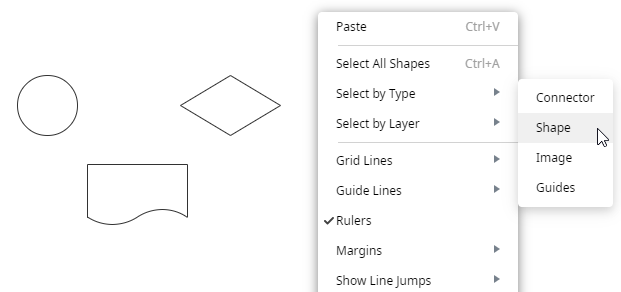
- Right-click the blank area of the drawing page, and choose Select All Shapes or Select by Type > Shape in the context menu. If you just want to select some shapes, not all shapes, please don’t use this feature.
If you accidentally select extra shapes, you can
- Click any blank area on the drawing page to deselect all shapes.
- Press Shift or Ctrl key and click the extra shape to deselect it.
The reference shape in the selection box has a thick magenta border and you can press Tab to switch it.