Edraw Support Center
Get quick answers and step-by-step instructions in our support center.
Other Basic Shape Operations
Same Size
Make shapes keep the same size or angle with the primary shape.
- Select two or more shapes.
- The primary shape has a thick magenta outline. You can press Tab to switch the primary shape.
- On Home tab, in Arrange group, click Size button
- Click Same Width to make the shapes' width same with the primary one.
- Click Same Height to make the shapes' height same with the primary one.
- Click Same Angle to make the shapes' angle same with the primary one.
- Click Same Size to make the shapes' width and height same with the primary one.
Note: The Same Size command will not affect connectors.
Annotate Shapes
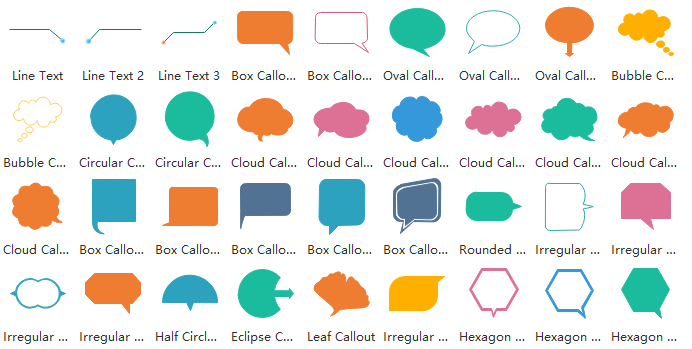
You can drag callouts from Callouts library to annotate the existing shapes. The Callouts library is in the General category:
 on the left pane of the canvas
You can type text into the callouts and glue the tail onto the target shape. Some even have nice and attractive designs as shown below.
Center a Drawing
On Home tab, in Arrange group, click Center button. Alternatively, right-click on any blank area on the canvas, select Center in the context menu. You can move the center of all shapes to the center of the page.