Business Process Diagram Software

|
Edraw Max is a vector-based diagramming software with rich examples and templates. Easy to create flow charts, organizational charts, business process, UML diagrams, work flows, program structures, network diagrams, chart and graphics, mind map, directional maps and database diagrams. With pre-drawn libraries and more than 5000 vector symbols, drawing couldn't be easier! |
Built-in Process Diagram Template
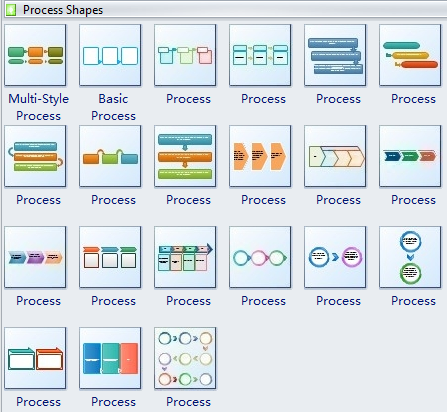
Just drag these lists to your drawing and it is easy to change the theme color and style.
Free Download Business Process Diagram Software and View All Examples
Process List
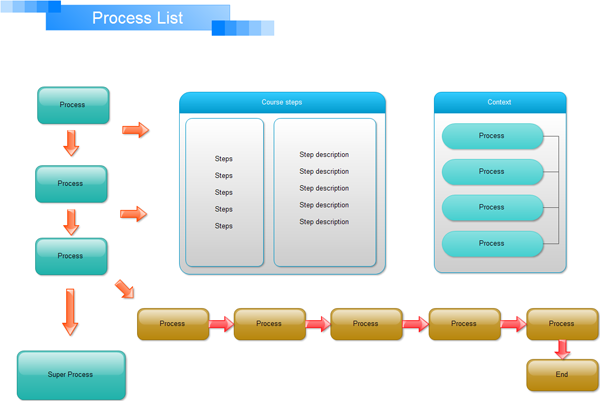
A process list is applied to show multiple groups of information or steps and sub-steps in a task, process, or workflow. Level 1 text corresponds to the top horizontal shapes, and Level 2 text corresponds to vertical sub-steps under each related top-level shape.
We present an example process list below, showing the software service cross-function process flowcharts among the different departments. It shows a simple flowchart among the customer, sales, technical support, tester and development.
Bending Process
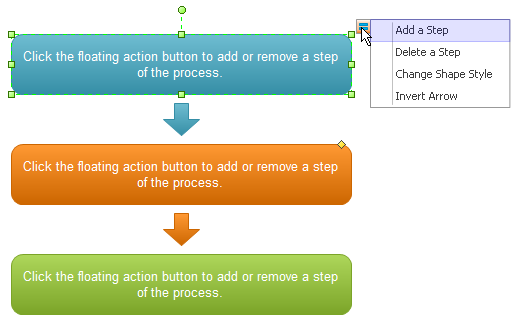
Bending process is used to show a progression or sequential steps in a task, process, or workflow. It can maximizes both horizontal and vertical display space for shapes.
Chevron Process
A basic chevron process is used to show a progression; a timeline; sequential steps in a task, process, or workflow; or to emphasize movement or direction. Level 1 text appears inside an arrow shape while Level 2 text appears below the arrow shapes.
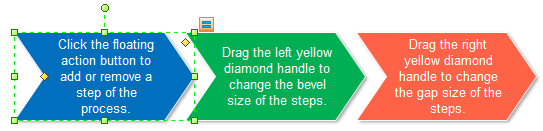
Basic Process
A basic process is used to show a progression or sequential steps in a task, process or workflow.
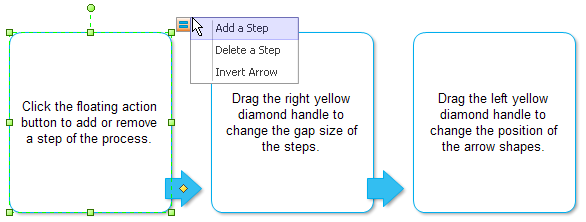
Detailed Process
Detailed process is used with large amounts of Level 2 text to show a progression through stages.
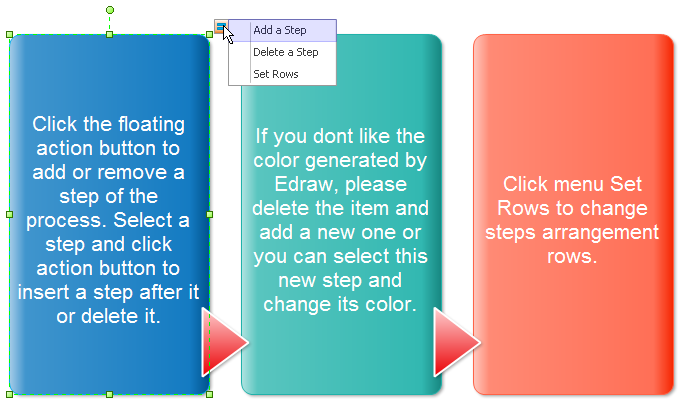
Segmented Process
Segment process is used to show a progression or sequential steps in a task, process, or workflow. Emphasizes Level 2 text, since each line appears in a separate shape.
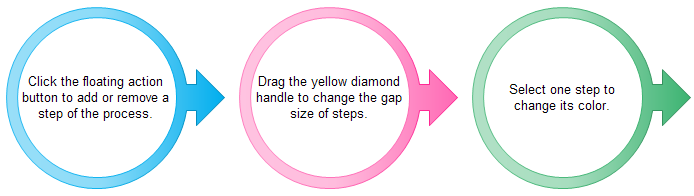
Staggered Process
Staggered process is used to show a downward progression through stages. Each of the first five lines of Level 1 text corresponds with a rectangle. Unused text does not appear, but remains available if you switch layouts.
Ribbon Arrow
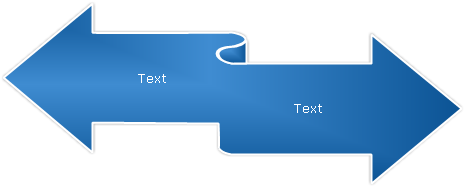
A ribbon arrow is for showing either related or contrasting concepts with some connection, such as opposing forces. The first two lines of Level 1 text are used for text in the arrows. Unused text does not appear, but remains available if you switch layouts.
Accent Process
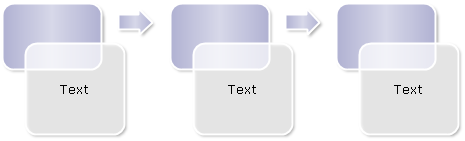
An accent process is used to show a progression, a timeline, or sequential steps in a task, process, or workflow. Works well for illustrating both Level 1 and Level 2 text.
Upward Arrow
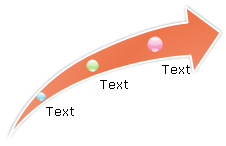
Upward arrow is used to show a progression or steps that trend upward in a task, process, or workflow. Each of the first five lines of Level 1 text corresponds to a point on the arrow. Works best with minimal text. Unused text does not appear, but remains available if you switch layouts.