

Edraw 서포트 센터
Edraw 서포트센터에서 제품 사용법과 FAQ에 대한 해답을 만나보세요.
Right-angle Connector
(Ctrl + 3)
On Home tab, in Basic Tools group, click Connector.
To create a right-angle connector, you need to point the cursor at any connection point of the shape. The connection point will be highlighted red.
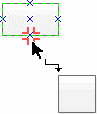
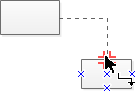
To glue an endpoint of the connector to connection points of other shapes, drag the endpoint to one of the connection points until a red crossroad symbol appears around the connection point and release the mouse button.
To adjust a connector:
- Select a connector.
- Drag the control handles or adjust the path of the connector as you want.
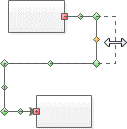
Once you adjust a connector, the connector will change its Reroute Mode to Never Reroute.