

Edraw 서포트 센터
Edraw 서포트센터에서 제품 사용법과 FAQ에 대한 해답을 만나보세요.
Line Format
You can change the format of a line by changing its colors, line styles, or width.
- Select the line that you want to change.
- If you want to change multiple lines, select the first line, and then press and hold Ctrl while you select the other lines.
- Click Line icon
 on the right sidebar.
Change Line Color
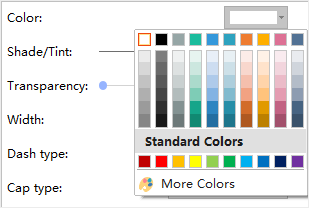
To choose a color for the line, click Color in Line option on Line panel or Style group of Home tab, and then click the color that you want.
To change to a color which isn’t in in theme colors, click More Colors, and then choose the color from the Standard tab or the Custom tab.
Change Dash Type
- Select the line that you want to change.
- If you want to change multiple lines, select the first line, and then press and hold Ctrl while you select the other lines.
- Click Line icon on the right sidebar.
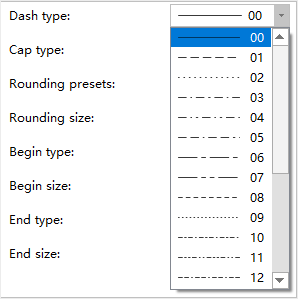
- Click Dash type and then choose the desired dash type.
Change Line Arrow
- Select the line that you want to change.
- If you want to change multiple lines, select the first line, and then press and hold Ctrl while you select the other lines.
- Click Line icon on the right sidebar.
- In the Begin and End type menu, choose the arrow style that you want.
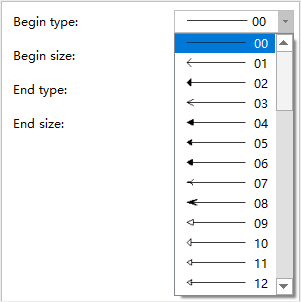
You can click More Arrows in Line button on Home tab to choose more arrow types.