Edraw 서포트 센터
Edraw 서포트센터에서 제품 사용법과 FAQ에 대한 해답을 만나보세요.
Save/Recover a Mind Map
Save a Mind Map
(Ctrl + S; Ctrl + Shift + S)
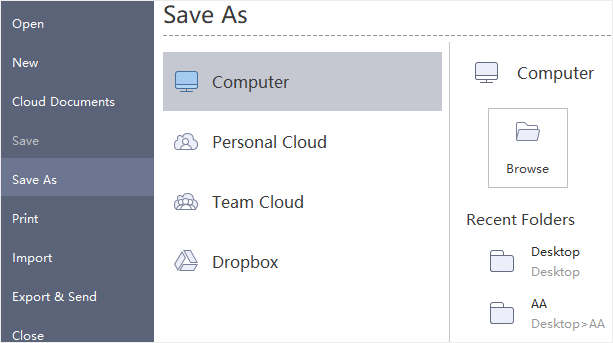
You can save your mind maps with Save or Save As commands. Go to File tab and click Save or Save As. Then enter a name and choose a path to save your files.
Recover an Auto-Saved Mind Map
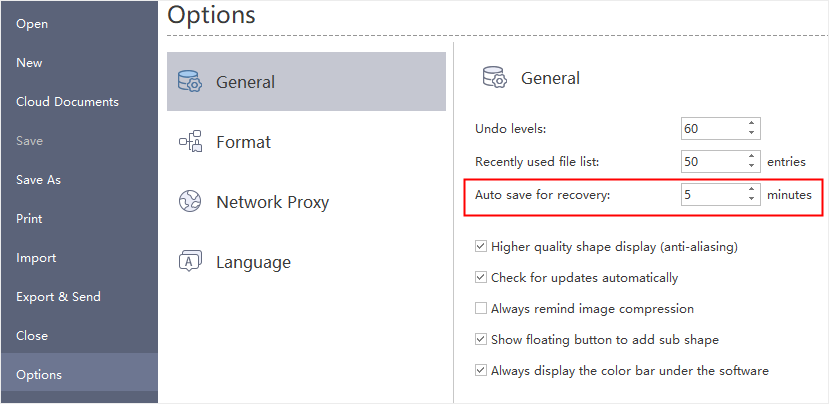
MindMaster save mind maps automatically for users in case that they don’t save files due to unexpected computer shutdown or software crash. Users can set a time period for each auto-save and the default setting is to save a file in every 5 minutes.
- Go to File tab, click Options and then click General.
- In Auto Save for recovery option, input a new time period.
Find an Auto Saved Mind Map
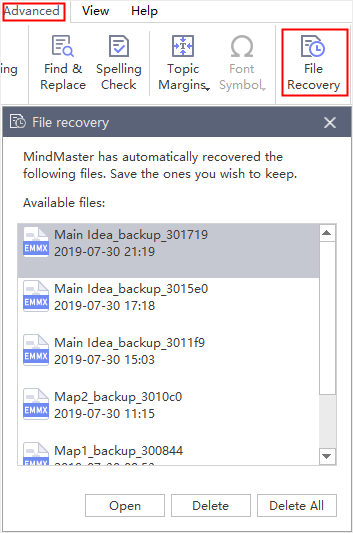
- Go to Advanced tab, click File Recovery button.
- Find your auto-saved files in the file recovery list.