

Edraw 서포트 센터
Edraw 서포트센터에서 제품 사용법과 FAQ에 대한 해답을 만나보세요.
Find and Replace
(Ctrl + F)
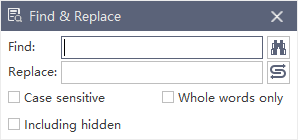
The Find & Replace command helps you check specific words within the whole map, including topics, boundary, notes, comments, task info, etc.
- Go to Advanced tab and click Find & Replace button and a pop-up dialog will show up.
- Type something that you intend to find in the find column and click Find icon
 .
. - Type content you intend to replace in the replace column and click Replace icon
 .
.
Tips:
- If you want to filter capital words only, tick Case sensitive for precision.
- If you want to reduce the scope of finding, tick Whole words only .
- If you want to find or replace the hidden content, tick Including hidden.