Edraw 서포트 센터
Edraw 서포트센터에서 제품 사용법과 FAQ에 대한 해답을 만나보세요.
Display Slides
Play Slides
Click Play Slides button on Slideshow tab or on Slide Preview panel to play slides. When the slides are in a slideshow mode, to navigate slides, you can:
- Press the Down or Right arrow on your keyboard to jump to the next slide and press the Up or Left arrow to go back to the previous slide.
- Click the right area on the screen to jump to the next slide and click the left area on the screen to go back to the previous slide.
- Move the cursor to the lower part of the canvas, a toolbar with 6 buttons will appear. Click the arrows keys to navigate your slides.

Click the following buttons to achieve corresponding effects:
 : Go to the previous slide
 : Go to the next slide
 : Zoom in
 : Zoom out
 : Fit to view
 : Exit slideshow
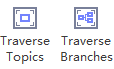
Traverse Topics or Branches
(F5, Shift + F5)
You can navigate and highlight specific topics or branches with the direction keys.
- Click Traverse Topics or Traverse Branches button to navigate your map.
- Click the full screen mode icon at the left corner of the bottom toolbar, then you can traverse and edit your map in the full screen mode.