Edraw Support Center
Get quick answers and step-by-step instructions in our support center.
Print Documents
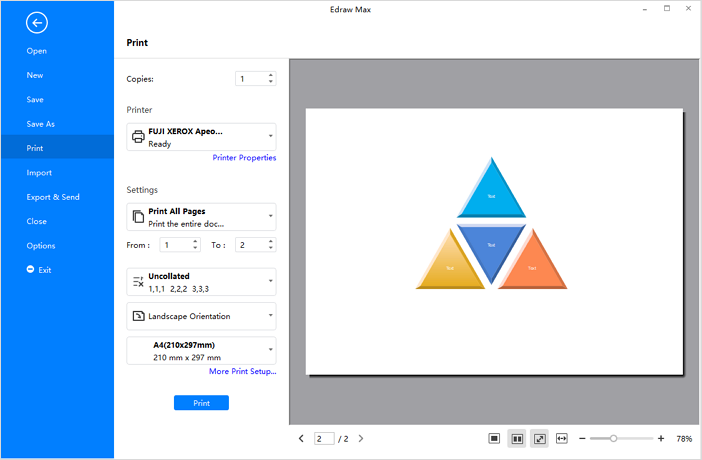
Go to File > Print and see the print preview interface. By default, the copy number is 1 and you can choose printers or check printer status in Printer Properties.
Print Settings
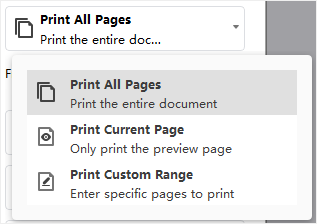
To decide which page(s) of your document will be printed, click the first box to choose the corresponding option. When you want custom print, don’t forget to type specific page numbers.
In the meantime, you can decide to print in a collated/uncollated way, change page orientation between Portrait and Landscape.
You can find the paper size list in the “A4(210*297mm)” option box. These paper sizes are supported by the current printer and are all industry-standard sizes.
More Print Setup
Click More Print Setup to see whether the sizes of the drawing page and the printer paper meet your requirements. You can add grid or guideline and see the result in the preview window.
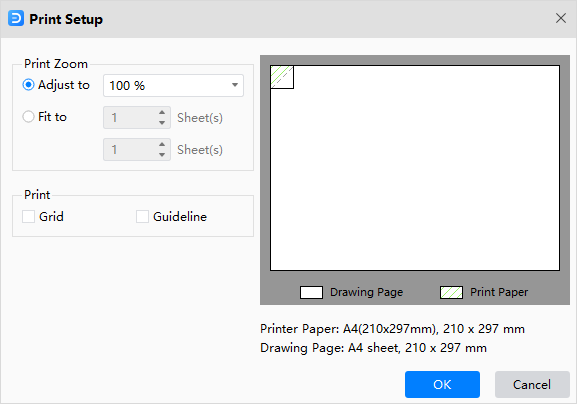
Adjust to: The percentage represents how the print size of the drawing page matches that of the print paper(s). 100% means that the drawing will be printed exactly on a paper. Less than 100% indicates that there will be extra space on the print paper that is not covered by the drawing. For more than 100%, the drawing should be divided into sections and printed by several papers.
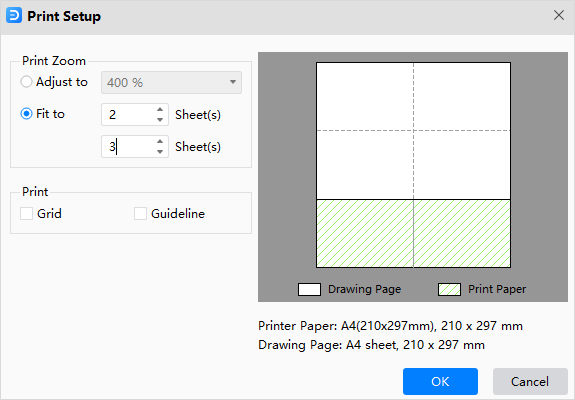
Fit to: The numbers will decide how many sheets will be used to print the whole drawings. The above means to add printer papers horizontally, while the below is to add papers vertically.
Watch this video to learn more. If the video doesn't play, please visit it at YouTube.
Timestamps
00:09 Create a new drawing document
00:39 Add multiple pages in one document
00:47 Choose and open a template example
00:59 To open *.eddx EdrawMax file
01:10 Save drawing files to local device and on personal Cloud
1:43 Import *VSDX Visio file into EdrawMax
02:00 Import SVG file into EdrawMax
02:17 Eport EdrawMax files to PNG, JPG, TIF and so on graphic files
02:42 Eport EdrawMax files to PDF, PS and EPS format
03:05 Export EdrawMax to editable MS Word, PPT and Excel
03:30 Export EdrawMax to HTML
03:52 Export EdrawMax to SVG file
04:04 Export EdrawMax to *vsdx Visio file
04:19 Print EdrawMax drawings