Open Password Protected Word, Excel, PowerPoint File

Microsoft Word and Microsoft Excel both have the ability to assist you in protecting your document's security. So lots of documents have password and writepassword.The component supports seamless integration with Office 97, Office 2000, Office 2003, Office 2007 and Office 2010.
Download Office Viewer Component and View Sample Projects
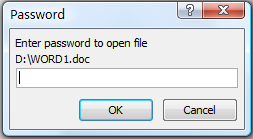
Figure 1: Password Protected Reminder Dialog
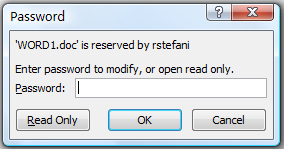
Figure 1: WritePassword Protected Reminder Dialog
How to Remove the Two Protect Dialog
You can use the SetValue method to set password and writepassword property for the Word and Excel document before you call the Open method. It's better to add the SetValue method at the NotifyCtrlReady event or BeforeDocumentOpened event.
boolean SetValue([in] BSTR Name, [in] BSTR Value)
Sets the password, writepassword, domain and
protectmodereminder for the document.
Name: The name string.
Value: The value string.
Example
The following VBScript shows how to open a password-protected document. if the 1.docx file has the password 1234, the writepassword 5678, you can use the following sample.
Sub SetValue_Example()
EDOffice.SetValue "Password", "1234"
EDOffice.SetValue "WritePassword", "5678"
EDOffice.Open "c:\1.xls"
End Sub
Disables MS Word Standard Command
Free Download Office Viewer Component and View Sample Projects