Host multiple Excel instances

Question
I can open multiple Excel workbooks sequentially. I can even open the same Excel document twice in the sample application. I also found that the Excel process in background is still running and not terminated actually after I close the Excel from within the sample application. The toolbar in the Excel will be freeze up while switch to new Excel window.
Solution
This article explains how to host multiple Excel documents in a form or multiple tabs programmatically.
Firstly, please make sure you have installed Edraw Office Viewer Component V7.x. If you haven't got the version, please download it here.
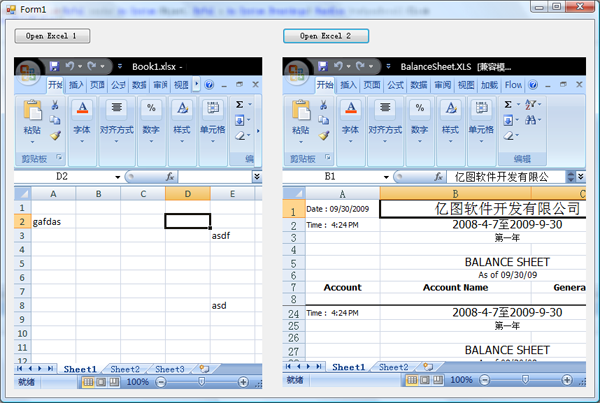
Then the following example will demo how to open two more excel instances at the same form using VB.NET.
Steps
- Install Edraw Office Viewer Component.
- Create a blank VB.NET application.
- Add Edraw Office Viewer Component on your form through customizing toolbox window as shown below.
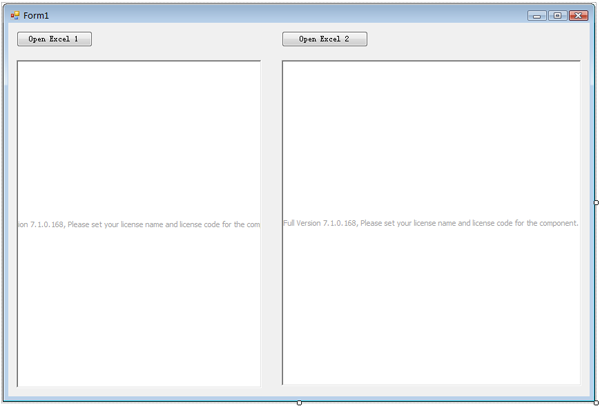
- Drag and drop Edraw Office Viewer Component from toolbox on your form and resize as the requirements. Add two button in the form. Then call the axEDOffice.OpenFileDialog() method.
-
Run the project, you can see the result as follow.
Conclusion
If you want to put the component in multiple tabs, you can only use an Edraw
Office Viewer Component. Put it in the form. Then call the Open method. The
component supports the IE7 and IE8. You can also host multiple Word Instances in
the same form, too by this method.
Integrate MS Office in Delphi Program

