Fit the Flowchart to your Process
You can eliminate rework and retrofitting by making sure
you're starting with the appropriate flowchart for the graphical problem you're
trying to solve. The following table shows what types of data fit best into
which types of flowcharts. Use it to identify the flowchart that fits the
process you want to show, and then find out how to make your flowchart easy to
revise
Flow Chart Software - Create flowcharts, org charts, network
diagrams and other business and technical diagrams with EDraw flowcharting
software. Provide abundant flowchart examples, templates, tutorial for free
download!
Flow Chart Solutions
|
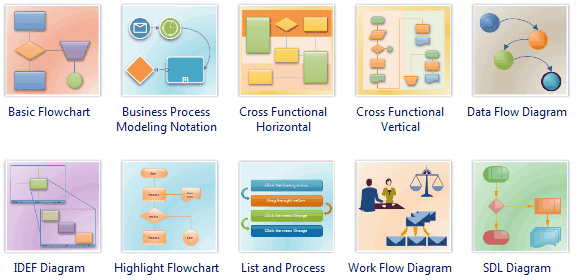
Flowchart type |
Sample |
Purpose |
|
Audit Diagram |
 |
Document and analyze processes that involve
financial transactions and inventory management. |
|
Basic Flowchart |
 |
Describe or analyze processes, document procedures,
indicate work or information flow, track cost and
efficiency. |
|
Cause and Effect Diagram (Ishikawa or fishbone
diagrams) |
 |
Create cause-and-effect diagrams (also known as
fishbone or Ishikawa diagrams) to systematically
review factors that affect or contribute to a given
situation. Document 6 Sigma and ISO 9000 processes. |
|
Data
Flow Diagram |
 |
Create structured analysis, information flow,
process-oriented, data-oriented, and data process
diagrams as well as data flowcharts. |
|
Cross-functional Flowchart |
 |
Show
the relationship between a business process and the
organizational or functional units, such as
departments, that are responsible for steps in that
process. |
|
SDL
Diagram |
 |
Create object-oriented diagrams for communications
and telecommunications systems and networks, using
Specification and Description Language (SDL). Based
on CCITT specifications. |
|
Work
Flow Diagram |
 |
Create diagrams of information flow, business
process automation, business process re-engineering,
accounting, management, and human resources tasks.
Document 6 Sigma and ISO 9000 processes. |
|
TQM
Diagram |
 |
Create cause and effect, top down and
cross-functional process flow diagrams for business
process re-engineering, Total Quality Management (TQM),
and continuous improvement. Document 6 Sigma and ISO
9000 processes. |
|
EPC
Diagram |
 |
Create Event-driven Process Chain (EPC) diagrams to
document business processes. Document SAP processes. |
|
Fault Tree Analysis |
 |
Create Fault Tree diagrams to document business
processes. Document 6 Sigma and ISO 9000 processes. |
|
IDEF0 Diagram |
 |
Create hierarchical diagrams using IEDF0 process
charting models for model configuration management,
need and benefit analyses, requirements definitions,
and continuous improvement models. |
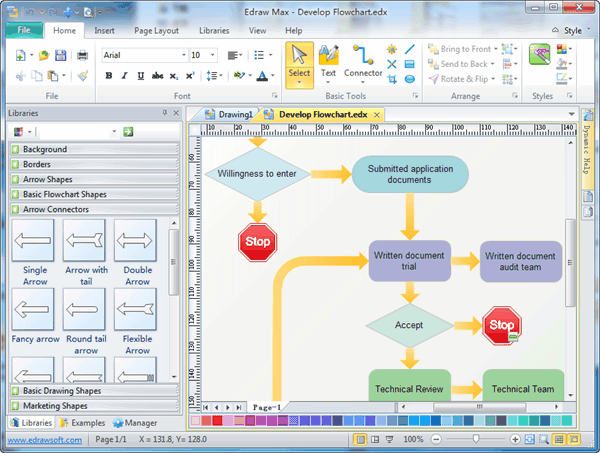
Make your Flowchart Easy to Revise Microsoft EDraw includes a
special tool you can use so that connecting lines are added automatically when
you drop shapes, and the shapes stay connected when you move them. It's called
the connector tool
and, if you use it instead of simply drawing lines between the boxes with the
line tool, you'll save time both as you create and revise a flowchart.

Use the connector tool to add lines between shapes as you drop them.
If you want to learn more about connections between steps and how to control
where lines go into or out of shapes, see More about
connecting.
To create a basic flowchart that's easy to revise
| 1. |
On the File menu, point to Template Gallery, point to Flowchart,
and then click Basic Flowchart. |
| 2. |
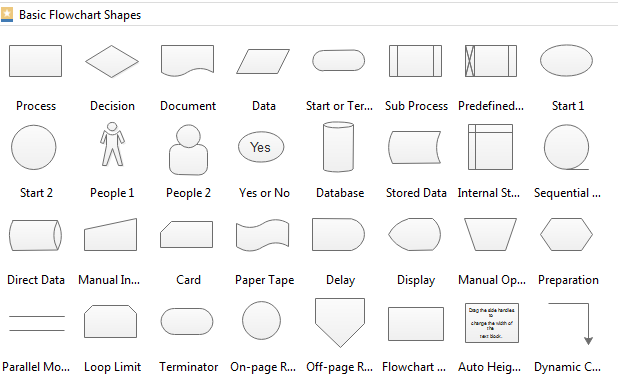
Drag a Process shape from the Basic Flowchart Shapes
stencil to the drawing page. |
| 3. |
Click the connector tool
on the Drawing toolbar. If you don't see the connector
tool, on the View menu, click Toolbars, and then check
Drawing Tools. |
| 4. |
Drag a second Process shape to the drawing page. |
| 5. |
Continue adding Process, Decision, Document and
other shapes until all the shapes you want are on the page. Each new
shape you drop connects to the shape that is selected at the time you
drop it. |
| 6. |
Click the pointer tool
on the Standard toolbar. |
| 7. |
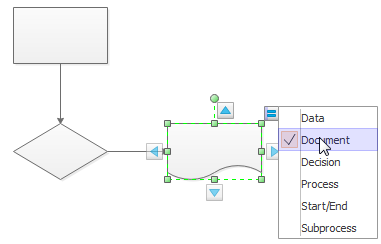
Optional To add text to a process step, click the shape
representing the step, and then type. |
| 8. |
Optional To change the direction the process flows between
two steps, click the connecting line between the steps. On the Shape
menu, click Flip Horizontal if the connecting line is horizontal
or Flip Vertical if the connecting line is vertical. |
Tip You can also connect a series of shapes simultaneously by
selecting the shapes you want to connect in the order you want them to connect,
and then, on the Tools menu, clicking Connect Shapes.
Change your Flowchart's Layout
You may want to revise the layout of a flowchart to improve the way it looks
on the drawing page or to accommodate updates, such as the addition of new
processes or decisions.
Two Ways to Revise Flowchart Layout
|
Drag flowchart shapes (Manual) |
Your flowchart is small.
You only have a few revisions to do. |
|
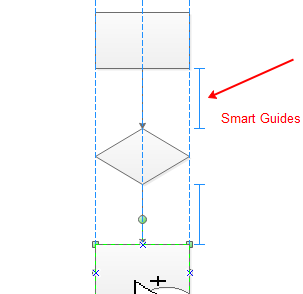
Click the Align or Distribute command |
Your flowchart is large and revising manually
would take a lot of time.
You have added a new series of shapes to a large flowchart. |
Add navigational links
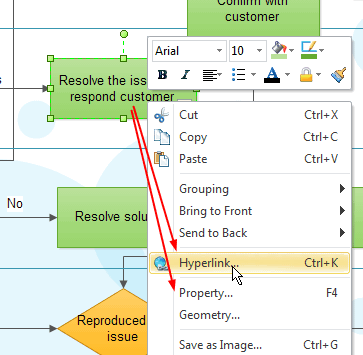
To add a navigational link to a flowchart shape
| 1. |
Click the shape you want to add a link to. |
| 2. |
On the Insert menu, click Hyperlinks. Do one of the
following:
| • |
To link to a Web site, for Address,
type the Web site's URL, and then navigate to the site in your
default Web browser. |
| • |
To link to a document, for Address,
click Browse. then navigate
to the local file, and then click Open. |
| • |
To link to another page in the same
diagram, leave Address blank. For Sub-address,
click Browse, choose the page you want to link to, and
then click OK. |
|
| 3. |
Click OK. |
To follow the link to its destination
| 1. |
Right-click the flowchart shape to which a link has been added. |
| 2. |
Click the name of the link you want. |
Tip When you display a flowchart in Full Screen, or presentation, view
(on the View menu, click Full Screen), links on shapes behave just
like hyperlinks on Web pages.
Tips: Working with Large Flowcharts
Because many processes are long and complex, flowcharts often extend beyond
the boundaries of a letter-sized printed page. There are several ways you can
handle large flowcharts so they are easy to work with and distribute.
Ways to Handle Large Flowcharts
|
Drill-down approach |
Create a high-level flowchart on one page. From
each high-level step in this flowchart, "drilldown" to a more detailed
flowchart on a new page. |
|
Off-page references |
Draw as much of your flowchart as you can on one
page. Then, use an off-page reference to create a jump to the page on
which the flowchart continues. |
|
On-page references |
Draw as much of your flowchart as you can moving
down or across the page. Then, use an on-page reference to indicate that
the flowchart continues at the top or left of the page. |
|
Change drawing page size |
Change the size of the drawing page to contain the
flowchart you are creating. When you print the flowchart, it may tile
across several letter-sized printed pages. |
|
Change flowchart size |
You can scale a flowchart so that it fits on a
letter-sized printed page. |
Drill-down approach
To create a drill-down flowchart
| 1. |
On the File menu, point to New, then to Template
Gallery - Flowchart,
and then click the type of flowchart you want to create. |
| 2. |
Create a high-level flowchart by dropping shapes onto the drawing
page. |
| 3. |
On the Insert menu, click Page. Type a name for the new page
if you want, and then click OK. |
| 4. |
Click the page tab to return to the high-level flowchart page. |
| 5. |
On the shape that represents a process step you want to define in
detail on the new drawing page, create a navigational link that jumps to
the new drawing page. |
| 6. |
Repeat steps 3-5 for each high-level process step you want to
drill-down on. |
| 7. |
Drop shapes onto the new drawing pages to create the flowcharts you
want to drill down to. |
Off-page references
To create a flowchart using off-page references
| 1. |
On the File menu, point to New, then to Template
Gallery - Flowchart,
and then click the type of flowchart you want to create. |
| 2. |
Create a flowchart by dropping shapes onto the drawing page. Keep
adding shapes until you come close to the bottom or right edge of the
drawing page. |
| 3. |
Drag the Off-Page Reference shape onto the page and position
it near the edge, as the last shape. |
| 4. |
Click OK to add the Off-Page Reference shape to the
current page, and to create a new drawing page that has its own
Off-Page Reference shape. |
| 5. |
With the Off-Page Reference shape on the new drawing page
selected, click the connector tool
on the Drawing toolbar. If you don't see the connector
tool, click the arrow next to the connection point tool. |
| 6. |
Continue adding flowchart shapes until your flowchart is complete or
you reach the end of the new drawing page. |
| 7. |
If necessary, repeat steps 3-6 to add another off-page reference. |
To navigate between pages using off-page references
| • |
Double-click an Off-Page Reference shape to
navigate to the page the shape references. |
On-page references
To create a flowchart using on-page references
| 1. |
On the File menu, point to New, then to Template - Flowchart,
and then click the type of flowchart you want to create. |
| 2. |
Create a flowchart by dropping shapes onto the drawing page. Keep
adding shapes until you come close to the lower or right edge of the
drawing page. |
| 3. |
Drag the On-Page Reference shape onto the page and position
it near the edge, as the last shape. |
| 4. |
With the shape selected, type an identifying label, such as a number
or letter. |
| 5. |
On the Edit menu, click Duplicate, and then drag the
duplicate shape to the top or left of the drawing page. |
| 6. |
With the On-Page Reference shape on the new drawing page
selected, click the connector tool on the Standard
toolbar. Use the connector tool to add lines between shapes as
you drop them. |
| 7. |
Continue adding flowchart shapes until your flowchart is complete or
you reach the end of the page. |
| 8. |
If necessary, repeat steps 3-7 to add another on-page reference. |
Change drawing page size
To change drawing page size
| 1. |
With the flowchart open, on the File menu, click Page
Setup. |
| 2. |
Click the Page Size tab. |
Tip You can preview page breaks and change them before you print.
Change flowchart size
To change flowchart size
| 1. |
With the flowchart open, on the File menu, click Page
Setup. |
| 2. |
Click the Page Size tab. Under Page Size,
click Custom Size. |
| 3. |
Type the appropriate scale units. For example, if the flowchart is
larger than the drawing page, change the scale so that .75 units on the
page are equal to 1 unit in the real world. |
| 4. |
Click OK. |
Tip Text doesn't scale with shapes. If your flowchart shapes contain
text that looks too large after you scale, press Ctrl+A to select all the
shapes, and then choose a smaller font size from the Font Size list on
the Format toolbar.
Product Information
It works in the following fields:
-
Basic
Flowcharts,
Data
Flowcharts,
IDEF0
Flowcharts,
SDL Diagrams.
-
Business
Charts,
Audit
Flow Diagrams,
Cause and Effect Diagram,
EPC Diagram Shapes,
Fault Tree Analysis Shapes,
TQM Diagram.
-
Organizational charts,
Smart
Connectors.
-
Human Resource Diagrams
-
Workflow
Diagrams
-
Programming
Flowcharts,
UML Model
Diagrams,
-
Logical
Network Diagrams,
Physical
Network Diagrams,
LDAP,
Active
Directory,
Cisco
Network Diagrams.
Offer more than 1000 shapes in common use, drawing does not need to start
a new
See our standard shape library
See the examples created with EDraw
Features and Capabilities
Readily communicate
information in an organized, graphical way. EDraw offers you all the tools
you need to quickly and easily create professional flow charts, network
diagrams, presentations and business diagrams in minutes. Getting started is
as simple as drag-and-drop.
-
Drag-and-drop
symbols from task specific libraries.
-
Connect them with
smart connecting lines. Add or remove
connection points optionally.
-
Add text, shapes,
icons, symbols and ole objects.
-
Import graphics or
choose from over 1000 chart symbols and
graphics included.
-
Powerful drawing
tools let you customize shapes, and
icons. Create you own shapes easily.
Include beeline, arc, sector, curve,
freeform, etc.
-
Rich examples and
rich templates.
-
Support multiple
pages in a document.
-
Work easily with other programs. EDraw
can work in other programs as OLE
object.
-
Repeating pattern
lines and fills for shapes & shadows.
-
Offer Alignment,
distribute, order, group, rotate, flip,
mirror.
-
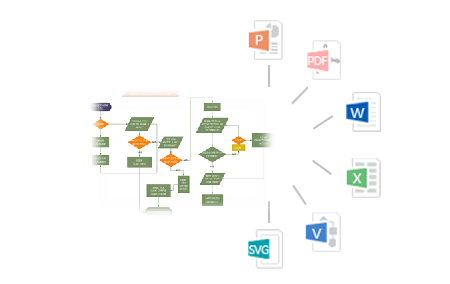
Enhanced export EMF,
WMF, BMP, JPEG, GIF, PNG, SVG, PDF,
Html,
Multiple page tiff and Slide Show.
-
Print and
distribute hard copies.
|
|