How to Create A Brainstorming Diagram

Part 1: What is Brainstorming?
Brainstorming is an activity that can be done alone or in a group. It involves individuals gathering ideas and to find a solution to a problem, or to generate new ideas. Once these ideas have been gathered, they are then put through an evaluation phase, after which the best or most important ideas are implemented in order to achieve a certain goal.
From students to working professionals, brainstorming is one of the best ways to address a specific problem or question. It encourages communication and teamwork amongst group members. Moreover, it requires participants to think critically and creatively about different ways that the problem can be solved. Instead of one person coming up with all the ideas, multiple people can bounce ideas off each other.
Part 2: Why Use EdrawMax to Create a Brainstorming Diagram?
A good brainstorming diagram is an excellent tool to help your team arrive at the best ideas and plans. Brainstorming diagrams help you develop any system of related ideas or information by showing interrelationships among topics in a hierarchy. They improve clear associative thinking and communication, which encourages innovation and problem solving.
For example, a project manager might use a brainstorming diagram to capture new product or feature ideas in a development meeting. A teacher could organize course ideas and craft a teaching plan.
While creating a diagram using a pen and paper beats linear note-taking, using Edraw to create your brainstorming diagram gives you flexibility not only in sharing your diagram but also in adding more information later. With Edraw, you can:
- Easily add and store new information.
- Distribute visual information to a wide variety of audiences more efficiently.
- Make your diagram look professional.
- Quickly publish your diagram to the Web.
- Export the diagram to Microsoft Office Word or Microsoft Office Excel.
- Export an outline as XML.
- Change the appearance of the diagram.
Part 3: How to Make a Brainstorming Diagram Effortlessly?
Step 1: Start EdrawMax.
Step 2: Navigate to [New]>[Mind Map]>[Mind Map]
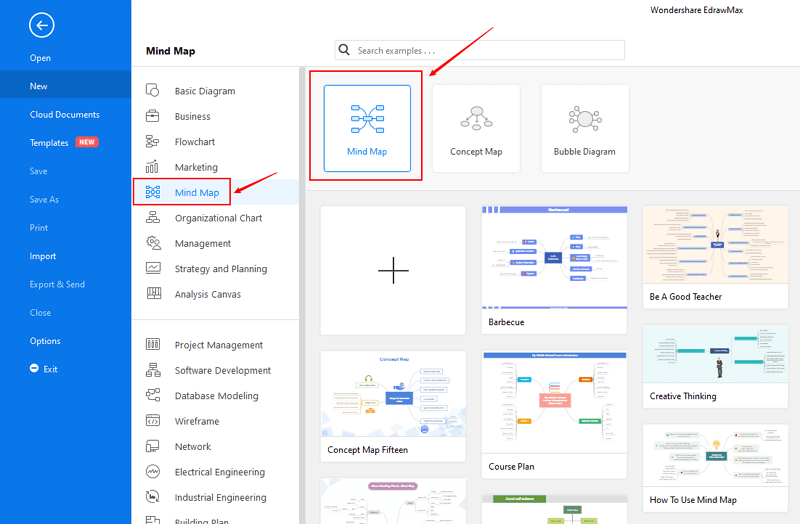
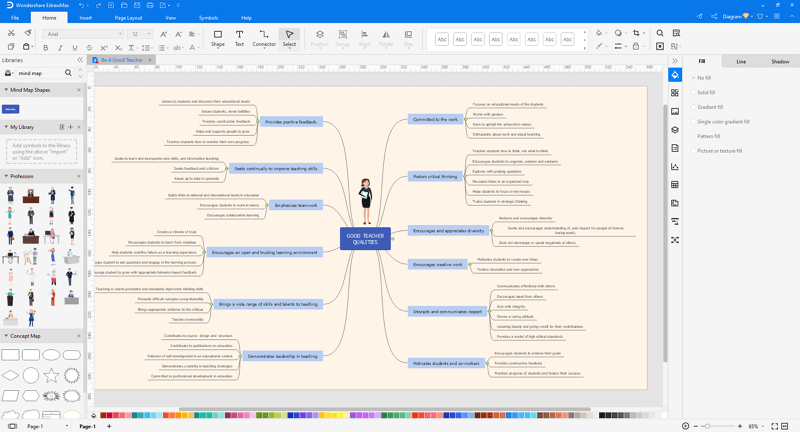
Step 3: Select one mind map template to edit on it or click the [+] sign to start from scratch.
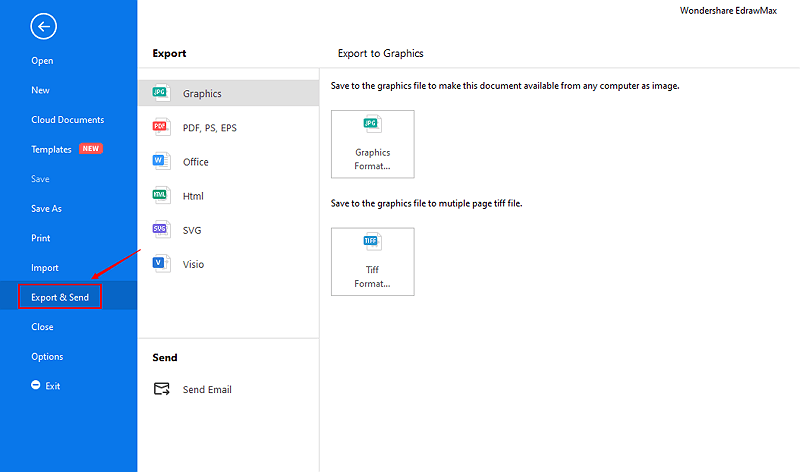
Step 4: You can export the file to Graphics, PDF, editable MS Office file, SVG and Visio vsdx file.
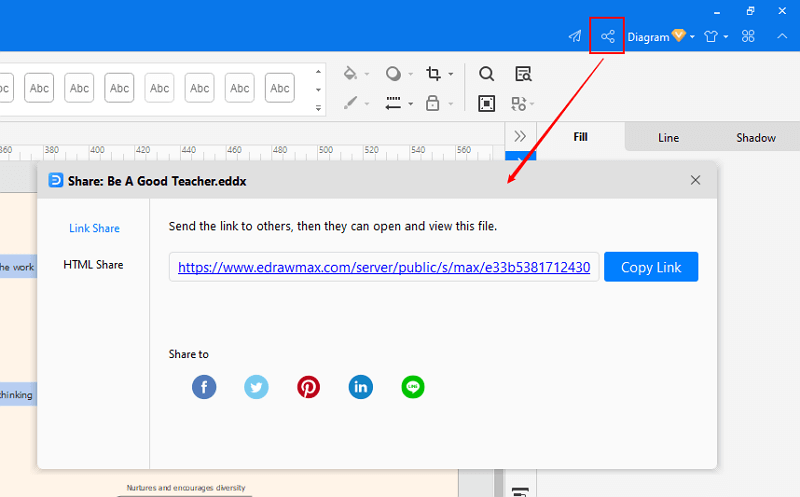
Step 5: And you can share your diagram with others via social media and online website page.
Part 4: Brainstorming Diagram Examples
Example 1: Typical Brainstorming Diagram
Brainstorming involves individuals gathering ideas and to find a solution to a problem, or to generate new ideas. Once these ideas have been gathered, they are then put through an evaluation phase, after which the best or most important ideas are implemented in order to achieve a certain goal.

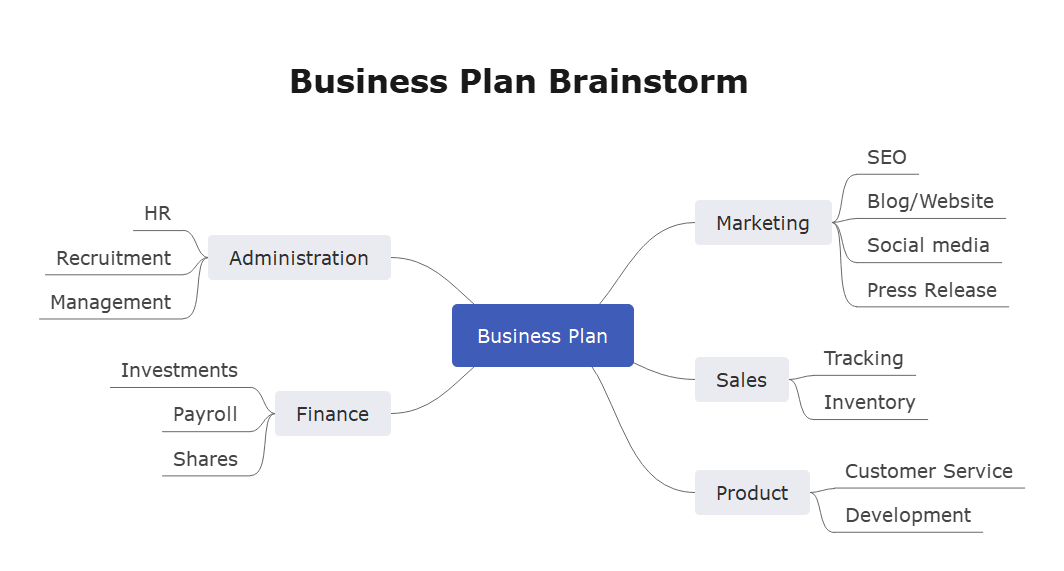
Example 2: Business Plan Brainstorming
Results of a brainstorming session can be shown in a brainstorm diagram. This is a visual way to present all of the ideas that were raised. In this example, ideas for administration, marketing, sales, product, and finance are listed.
Part 5: Conclusion
According to this article, there are mainly four parts to illustrate what is brainstorming, to tell you why many people use EdrawMax to create a brainstorming diagram, to tell you how to create a brainstorming diagram easily, and to show you some brainstorming diagram examples.
EdrawMax is an easiest all-in-one diagramming tool, you can create brainstorming diagrams and any other type diagrams with ease! With ready-made brainstorming diagram symbols and cliparts, making brainstorming diagrams could be as simple as possible. Also, it supports to export your work in multiple formats and share your work with others. Get started to create your brainstorming diagrams now!

An all-in-one platform for 210+ diagrams.
・ Simple alternative to Visio
・ 26k+ symbols
・ 10K+ free templates
・ 10+ AI diagram generators


Read More: