Create Diagram In 4 Easy Steps

1. Choose Template
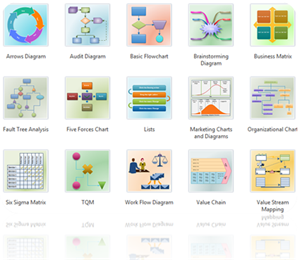
You begin to create a diagram by choosing a template. EdrawMax includes more than 200 diagram types to help create and share flowcharts, network diagrams, mind maps, marketing diagrams, charts and other diagrams.
> Each template Edraw offers specialized and related shapes and examples for a certain drawing type. Choose a template based on your needs and start your journey.
Create a Brainstorming Diagram

An all-in-one platform for 210+ diagrams.
・ Simple alternative to Visio
・ 26k+ symbols
・ 10K+ free templates
・ 10+ AI diagram generators


2. Create Diagram
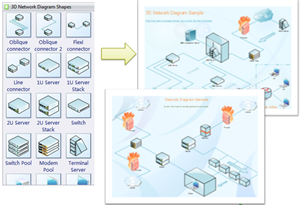
Just drag and drop. No drawing skills needed.
The easiest way to create- Flow diagrams,
- Brainstorming diagrams,
- UML diagram,
- Electrical diagram
- Workflow diagrams
- Network diagrams and more.
Edraw provides abundant pre-made shapes and templates for all kinds of diagram designing, together with rich examples giving ideas and references. Besides, the Microsoft alike interface offers a simple and straightforward platform, allowing anyone immediately pick it up, which greatly shorten your time and increase work efficiency.
3. Apply Diagram Theme
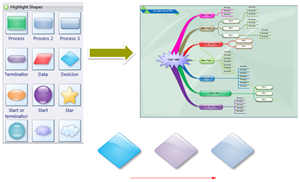
Edraw Max includes a group of nice themes with rich sets of improved effects, fonts and color schemes. With only one or two click you will get a professional designed look, no need to worry if you are not a good designer. While if you would like to be creative, you can easily customize your own theme through effects, fonts and color changing.
4. Public Diagram
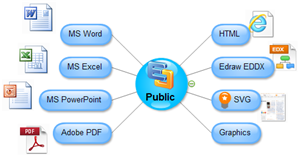
Work together in real time with your team and clients. EdrawMax is completely integrated with MS Office so the files can be exported to Word, Excel, PPT formats with a single click. In addition, you can also save your Edraw files as PDF and other graphic formats including PNG, BMP, JPEG, GIF, WMF and EMF without clarity loss.