Edraw Support Center
Get quick answers and step-by-step instructions in our support center.
Tools for Drawing Shapes
Navigate to Home > Shape, there are quick tools for drawing basic shapes.
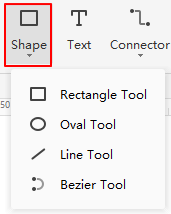
Click Rectangle Tool, and the cursor will transform into  . Drag the cursor on the canvas to draw different sizes of rectangles.
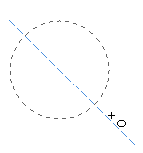
Click Oval Tool, and the cursor will turn into  . Drag the cursor on the canvas to draw ovals or circles. When you try to draw a circle with the oval tool, there will be a dashed diagonal line across the shape, and once you release the mouse, a circle is done.
Click Line Tool, and the cursor will change into  . Drag the cursor to draw a line on the drawing page. By default, there will be an arrow at the end of the line, and you can change the styles of a line in the right Line pane.
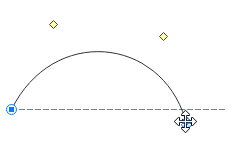
Click Bezier Tool, and the cursor will be like  . Drag the cursor to draw a curve. By default, there will be an arrow at the end of the line. You are able to drag the endpoints of the curve to change its position or direction. And the yellow squares are used for changing the radian of the curve.
Tips:
- If you want to move or resize the shape, please click Select on the ribbon and turn the cursor into the arrow firstly.
- To switch to the continuous drawing mode, press the F4 key, and then click the Shape button. You will see the cursor is ready for drawing, and it will not switch back into the arrow unless you press the F4 key again.
Watch this video to learn more. If the video doesn't play, please visit it at YouTube.
Timestamps
00:13 Tools for drawing shapes
01:26 Tools for drawing text boxes - text tool
02:21 Tools for drawing connectors - add connectors
02:53 To add connectors between shapes
03:14 To add a connector point on shape
03:48 To move connector point
04:14 To delete connector point